Skip to content
YOUCANIC
  • PRODUCTSExpand
    • UCAN-II PRO
    • UCAN-HD-A
    • Oscilloscope
    • High Capacity Jump Starter RB6000A
    • Battery & Charging System Tester
    • Adapters
    • All Products
    • Rent a Scanner
  • LEARNExpand
    • Find by Vehicle
    • Video Library
    • Scanner Resources
    • Mechanic Fixes
    • Success Stories
    • Community Forum
    • Glossary
    • Advanced Vehicle Data by VIN
    • Share a Fix ✦
  • TOOLSExpand
    • Calculators
    • VIN Decoder Basic – Free
    • VIN Decoder – Advanced
    • Recall Check
    • DTC Code Library
    • Parts Lookup
    • DIY Repair Savings Calculator
    • Owner’s Manual
    • Maintenance Schedule Lookup
    • Used Car Inspection Checklist
    • Vehicle Market Value
  • SUPPORTExpand
    • FAQs
    • Product Support
    • Coverage Check
    • Track Order
    • Product Resources
    • Talk to a Mechanic
  • ABOUTExpand
    • About Us
    • Contact Us
    • Press
    • Right to Repair: Every Car Owner’s Right
Log in Create account
🛒Shop
YOUCANIC

How to Pair a new VCI to your scanner

← Back to All Questions
Home › Questions & Answers › How to Pair a new VCI to your scanner
Beginner Applies to: UCAN-II-A-D & UCAN-HD-A
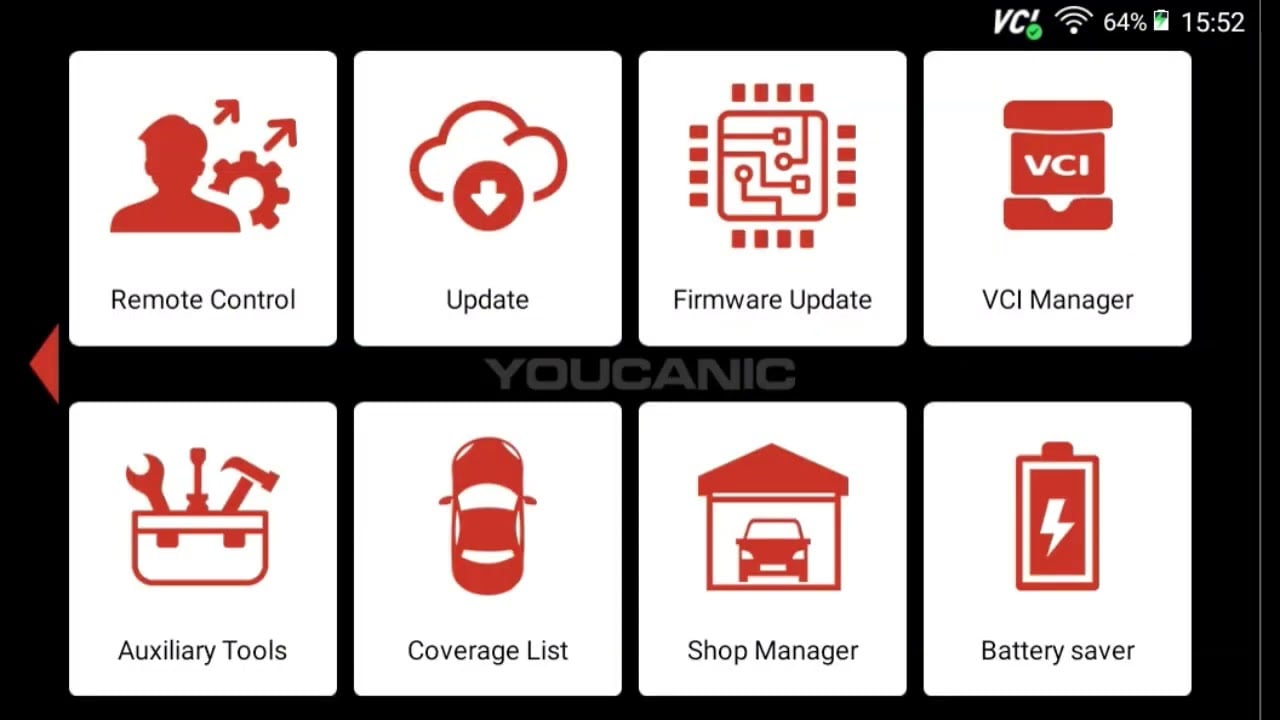
  1. Go to VCI Manager.
    How To Pair New Youcanic Vci Blu - How To Pair A New Vci To Your Scanner
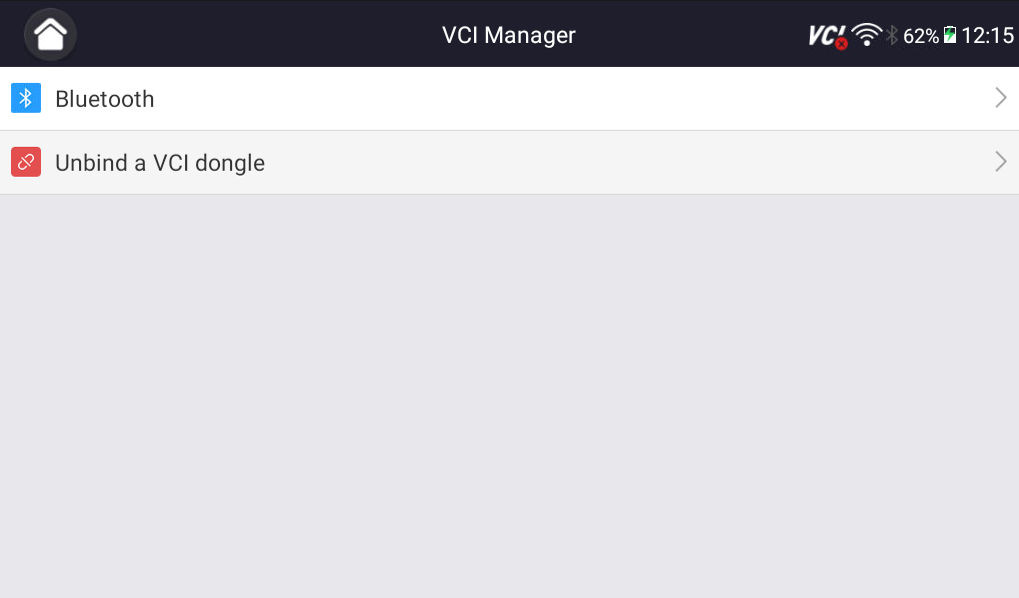
  2. Select Unbind a VCI Dongle, then connect your new VCI by using either the charger that came with your scanner or a data cable.Unbind Vci Dongle - How To Pair A New Vci To Your Scanner
  3. Once your new VCI has been connected, you will need to register your scanner. If you would like to register using the same email you used before, add a dot “.” somewhere in your email address. It will be enough to trick our database into thinking it is a different email, but the verification code will still be sent to your inbox.
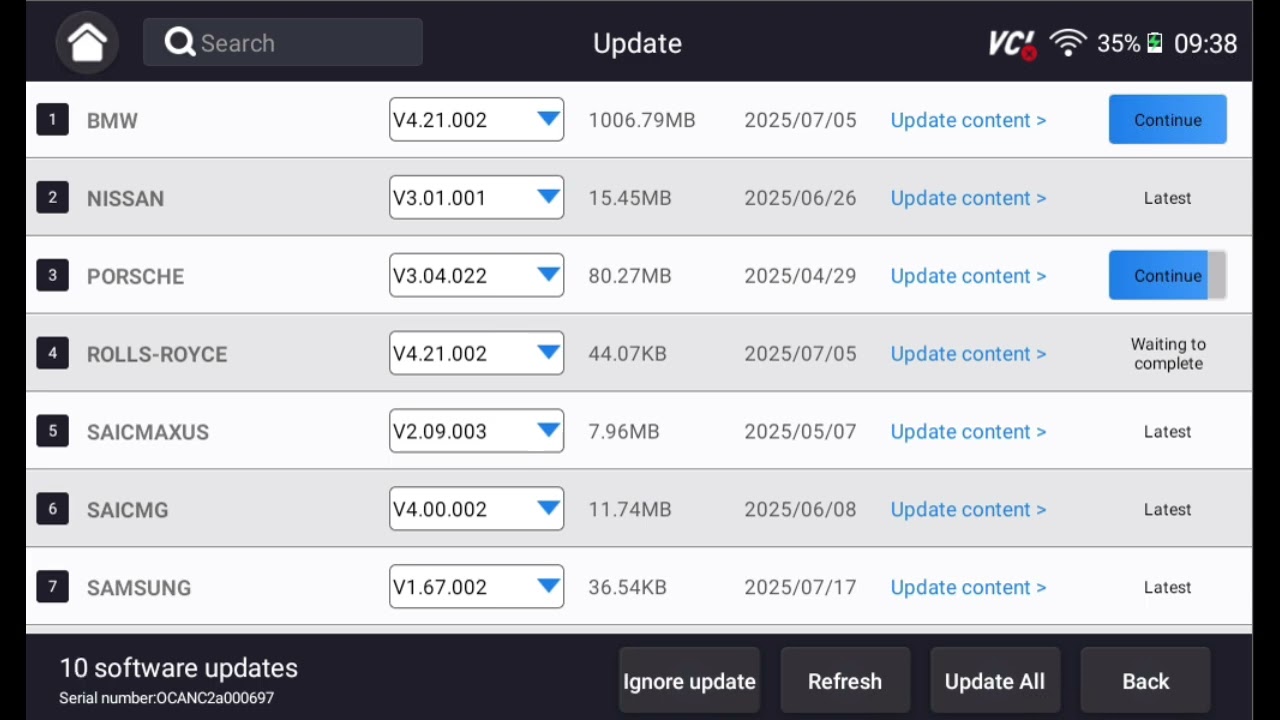
  4. Run all software updates.Supper Easy To Update Youcanic S - How To Pair A New Vci To Your Scanner

To free up space, go to Auxiliary tools and select File Browser. Select Internal Storage > UCAN-II > Scanner > Diagnose > then press and hold to select the file titled your old VCI’s serial number. Press Delete. Make sure your Recycle Bin is turned off, or you will have to delete this file again.

NOTE: Your scanner is registered to the serial number on the back of your new adapter. If you ever have to reach out to YOUCANIC Support for a software-related issue, we might ask for your serial number. Send us the serial number on the back of your VCI.

If you run into trouble at all during this process, contact YOUCANIC Support at support@youcanic.com.

Related Video

Youtube video
📖 Full Guide: Scanner Guide: How to Connect a new VCI Adapter to your YOUCANIC Scanner
🔧 Recommended: YOUCANIC BLUETOOTH VCI ADAPTER →
←Previous QuestionHow to improve the battery life on YOUCANIC scanner?Next QuestionHow to Replace Files on YOUCANIC Scanner→
Didn't find what you were looking for?

Our support team is ready to help.

Contact Us →
YOUCANIC Home

606 Baltimore Ave Suite 405
Towson, MD 21204 USA
Tel: 1 (888) 959-4265
Hours: M-F 9:00 AM - 4:00 PM

© 2015-2026 YOUCANIC®, owned by Bohotina LLC. All rights reserved. YOUCANIC® delivers expert automotive guides and DIY solutions empowering vehicle owners to diagnose and fix car problems with confidence. While we strive for technical accuracy, our content is for educational purposes and cannot substitute for professional mechanical advice. Use of this site constitutes acceptance of our Privacy Policy andTerms of Service. Need help? Contact our dedicated Customer Service team.

YouTube Facebook Email Google Reviews Phone
  • About Us
  • Contact Us
  • DMCA
  • Privacy Policy
  • Terms and Conditions

Searching...

Scroll to top
🛒 SHOP
  • PRODUCTS
    • UCAN-II PRO
    • UCAN-HD-A
    • Oscilloscope
    • High Capacity Jump Starter RB6000A
    • Battery & Charging System Tester
    • Adapters
    • All Products
    • Rent a Scanner
  • LEARN
    • Find by Vehicle
    • Video Library
    • Scanner Resources
    • Mechanic Fixes
    • Success Stories
    • Community Forum
    • Glossary
    • Advanced Vehicle Data by VIN
    • Share a Fix ✦
  • TOOLS
    • Calculators
    • VIN Decoder Basic – Free
    • VIN Decoder – Advanced
    • Recall Check
    • DTC Code Library
    • Parts Lookup
    • DIY Repair Savings Calculator
    • Owner’s Manual
    • Maintenance Schedule Lookup
    • Used Car Inspection Checklist
    • Vehicle Market Value
  • SUPPORT
    • FAQs
    • Product Support
    • Coverage Check
    • Track Order
    • Product Resources
    • Talk to a Mechanic
  • ABOUT
    • About Us
    • Contact Us
    • Press
    • Right to Repair: Every Car Owner’s Right

Log in Create account

Search