Scanner Guide: How to Connect a new VCI Adapter to your YOUCANIC Scanner
Have you been experiencing connection issues between your dongle and scanner? Your VCI might be faulty! Your VCI adapter can break or become faulty over time for a number of reasons, which means it might eventually need to be replaced.
Never fear, YOCUANIC is here! This guide will show you how to pair a new VCI adapter to your scanner. Are you more of a visual learner? Follow along with our YouTube tutorial!

NOTE: The scanner used in this guide is YOUCANIC’s latest UCAN-II-C model. However, these steps will work for other YOUCANIC scanner models, such as the UCAN-II-B and UCAN-HD-A scanners.

🔧 Stop paying the dealer for every warning light
Get dealer level diagnostics at home with the YOUCANIC Full System Scanner.
- ✔ Works with all makes and models, including most luxury brands
- ✔ Topology map view shows all vehicle modules on one screen for faster diagnostics
- ✔ Bi directional controls to test fans, pumps, actuators and more so you do not have to guess
- ✔ Special resets and calibrations such as ABS bleed, EPB service, battery registration and more
- ✔ Free lifetime updates with no recurring fees
1. From the scanner’s home screen, swipe or navigate to the second page. Select VCI Manager to get started.

2. Select the Unbind a VCI dongle option. A confirmation pop-up will appear asking if you’re sure you want to unbind. Select OK to confirm.

Once your scanner has successfully disconnected, a confirmation screen will appear, indicating the old VCI has been successfully unpaired.
3. Connect your new VCI dongle to the scanner using the charging cable that came with your scanner. Pairing will start automatically. This process may take some time, so please be patient. Once the new VCI has paired successfully, the scanner will reset.
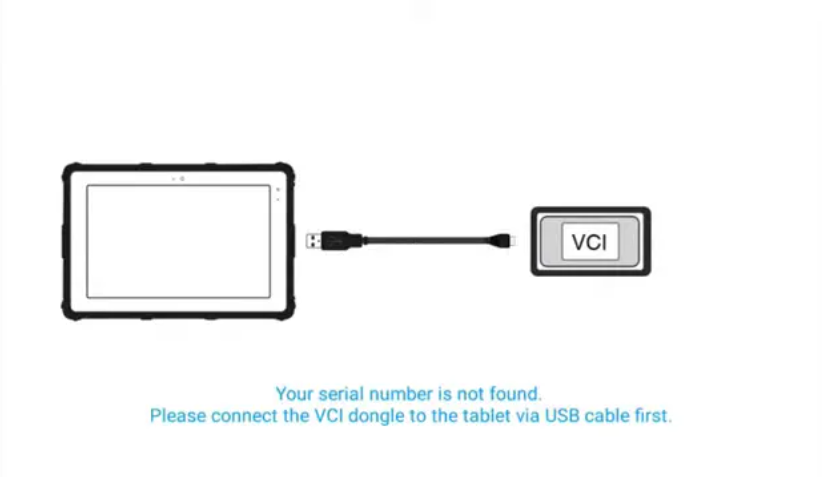
NOTE: If you are having trouble getting your VCI to connect to your scanner, try using a different charging cable or a USB-A-to-USB-C adapter to connect your new VCI to your scanner.

4. After the reset, you will be redirected to the homescreen. Before you can use your scanner for diagnostic procedures, you have to run updates. Register your scanner and run updates.

When a new VCI is paired with your scanner, the scanner’s registered serial number changes, so you will have to create a new account instead of signing in to your old one. If you would like to use the same email on your new scanner profile, email your old serial number to us – It can be found on the back of your scanner – and we can unregister the account.
5. Once you have successfully registered, open the Updates tab and run all available updates. After you have fully updated your scanner, restart it, then go to diagnostics to ensure all cars are available. Happy scanning!
Additional steps to free up space
Pairing a new VCI creates an additional diagnostic materials folder that takes up a large amount of space. To avoid storage issues down the road, we recommend deleting the folder associated with your old VCI. These steps are recommended but not required.
1. Go to “Auxiliary tools,” then, on the following screen, select “File Browser,” then “Internal Storage.”
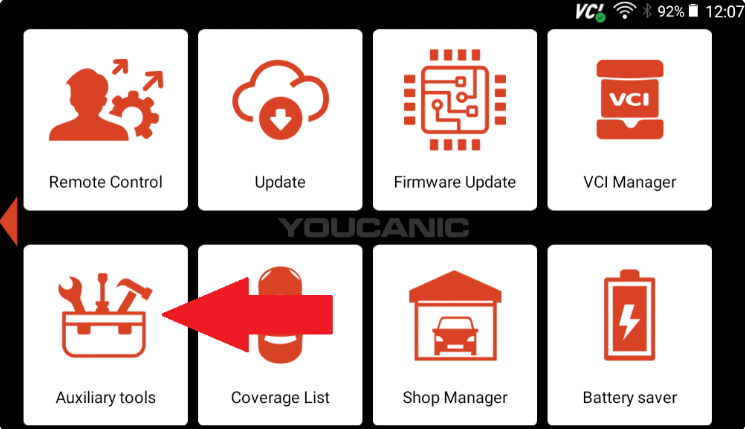

2. Select the folder labeled UCAN-II on the bottom right, then select the file named “scanner.”

3. Select the folder named “Diagnose.” On the following screen, press and hold the file with the name that matches the serial number on the back of your old adapter, which typically is the same as the serial number on the back of the scanner itself. You want to delete the folder with the old serial number. In our case, that file is OCANB66001354. Once the file is selected, hit delete.

4. Once the file has been removed, select the three bars at the top left corner of your screen, and scroll down to the Recycle Bin option.

5. If Recycle Bin is on, you will need to select this option and delete the file again.

Once your new adapter has been paired and the vehicle files have been updated, run a test scan to ensure everything is working properly. If you run into any problems during this process, feel free to contact us at support@youcanic.com. We are always happy to help!