Scanner Guide: How to Register A new Battery
Have you recently replaced the battery in your car? While not a requirement for all vehicles, that new battery might need to be registered before your car can get back on the road. Don’t take your car to the dealership! Learn how to register the battery using a YOUCANIC scanner. Are you more of a visual learner? Follow along with our video guide below:

Demo Model: Audi Q5
Why do I need to register my Battery?
Modern vehicles are rolling computers. In more and more cars, replacement batteries need to be registered so the car’s ECU knows how to properly charge them and allocate energy to the car’s various electrical components. Your car will still run if it isn’t registered, but the battery will drain quickly, or your car will enter limp mode.

🔧 Stop paying the dealer for every warning light
Get dealer level diagnostics at home with the YOUCANIC Full System Scanner.
- ✔ Works with all makes and models, including most luxury brands
- ✔ Topology map view shows all vehicle modules on one screen for faster diagnostics
- ✔ Bi directional controls to test fans, pumps, actuators and more so you do not have to guess
- ✔ Special resets and calibrations such as ABS bleed, EPB service, battery registration and more
- ✔ Free lifetime updates with no recurring fees

Not all cars require battery registration after replacement. If your car has intelligent Battery Sensors (IBS) installed, you will need to register a new battery. Registration requirements vary by model, but some manufacturers, such as BMW, require battery registration for nearly all cars made after 2007.
Step-by-step Guide
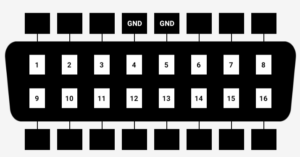
- Connect your VCI to your car’s OBD-II port and turn your car on to position I. If your car has Push-to-Start, press the start button with your foot off the brake pedal.
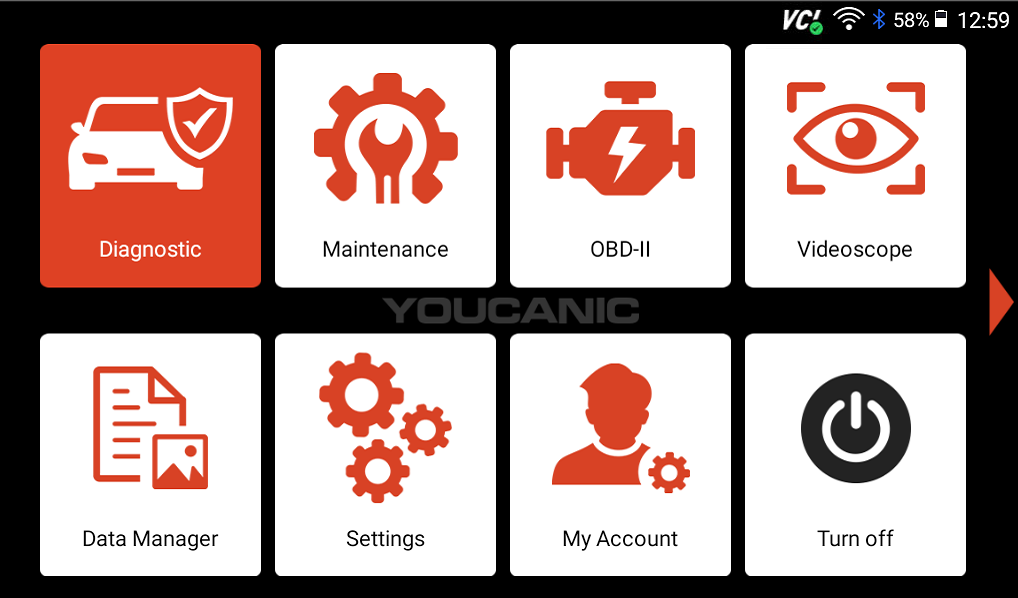
- On the homescreen of your scanner, select Maintenance.

- On the following screen, select BRT.

- Find your vehicle make on the following screen, and use the SmartVin function to automatically read vehicle information.

- On the next screen, select the “adapt battery after replacing” option.

- There will be two options available: Match the new battery and Displayed Battery Information. The first option will take you to the battery registration function, and the second will provide information related to the battery in your car. Tap on the first option.

- Before you begin, a message will appear on your screen informing users that battery registration can only be done after a battery replacement. Press OK.

- Your scanner will ask you for the new battery’s rated capacity (Amp Hours). This number can usually be found printed on the top of your battery, but if you know the cranking amps (CA) of your battery, you can subtract it from the cold cranking amps (CCA) to find the right value.

- Next, select your battery type and manufacturer. If you don’t know the manufacturer, select option number 9: Unknown.


- Enter your new battery’s serial number, then press OK.

- If battery registration was successful, the message “The adaptation was sucessful” will pop up on your screen. Now, with a properly registered battery, your car is ready to get back on the road!



Disclaimer: This guide may not apply to all vehicle makes and models. If you need to verify coverage for your particular vehicle, please contact YOUCANIC support or use our Compatibility Checker.
Need some extra help? Get real, helpful answers from real mechanics with YOUCANIC DIY Assist support. Email our support team and get a reply within 24 hours to help you with any technical questions you may have.