Wheel Speed Sensors: Find out which one is faulty using a YOUCANIC Scanner
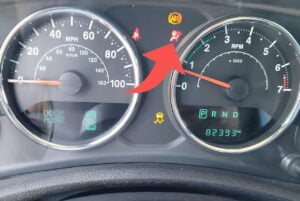
Is the ABS light on in the dashboard of your car? While the issue could be low brake fluid or old, worn-down brake pads, the issue could also be a faulty ABS wheel speed sensor! Before you run to the dealership, fix the issue yourself using a YOUCANIC scanner!

Video Model: Mercedes-Benz
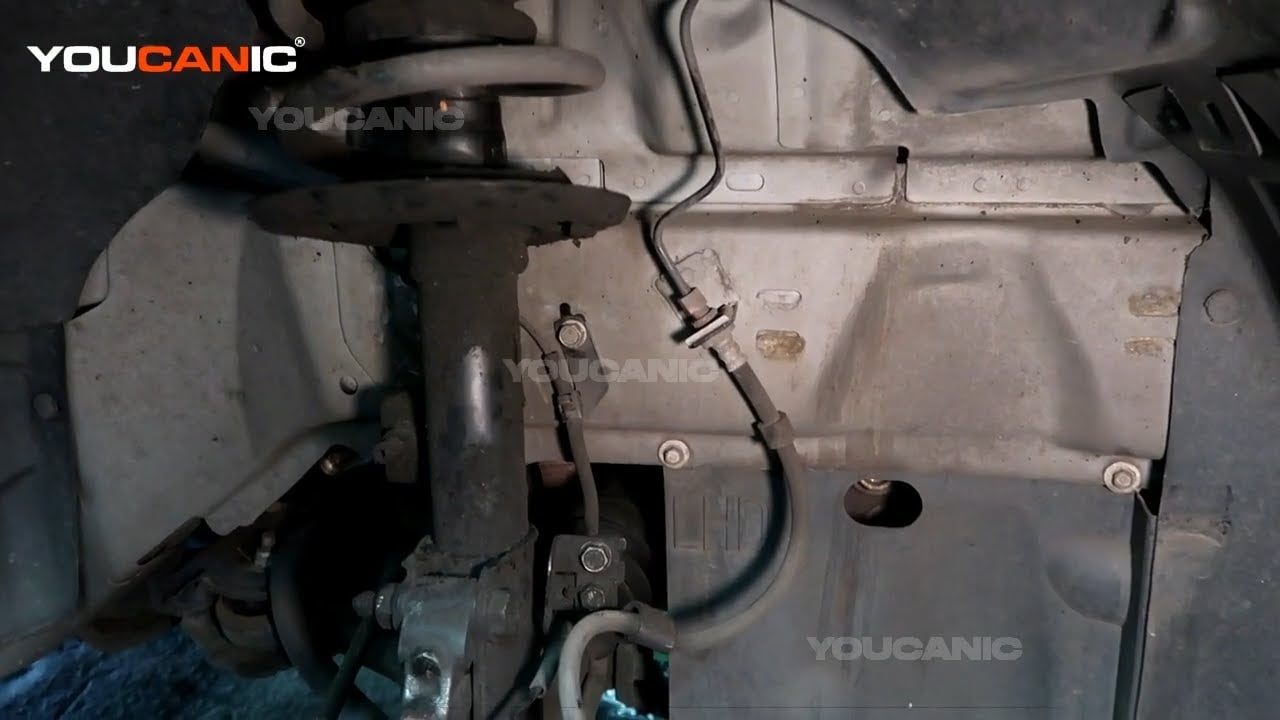
ABS wheel speed sensors are connected to each wheel on your car. They collect and send data to your Anti-lock Braking System (ABS), preventing your wheels from locking up during emergency stops. When one of these sensors becomes faulty or fails, it can make driving more dangerous.

🔧 Stop paying the dealer for every warning light
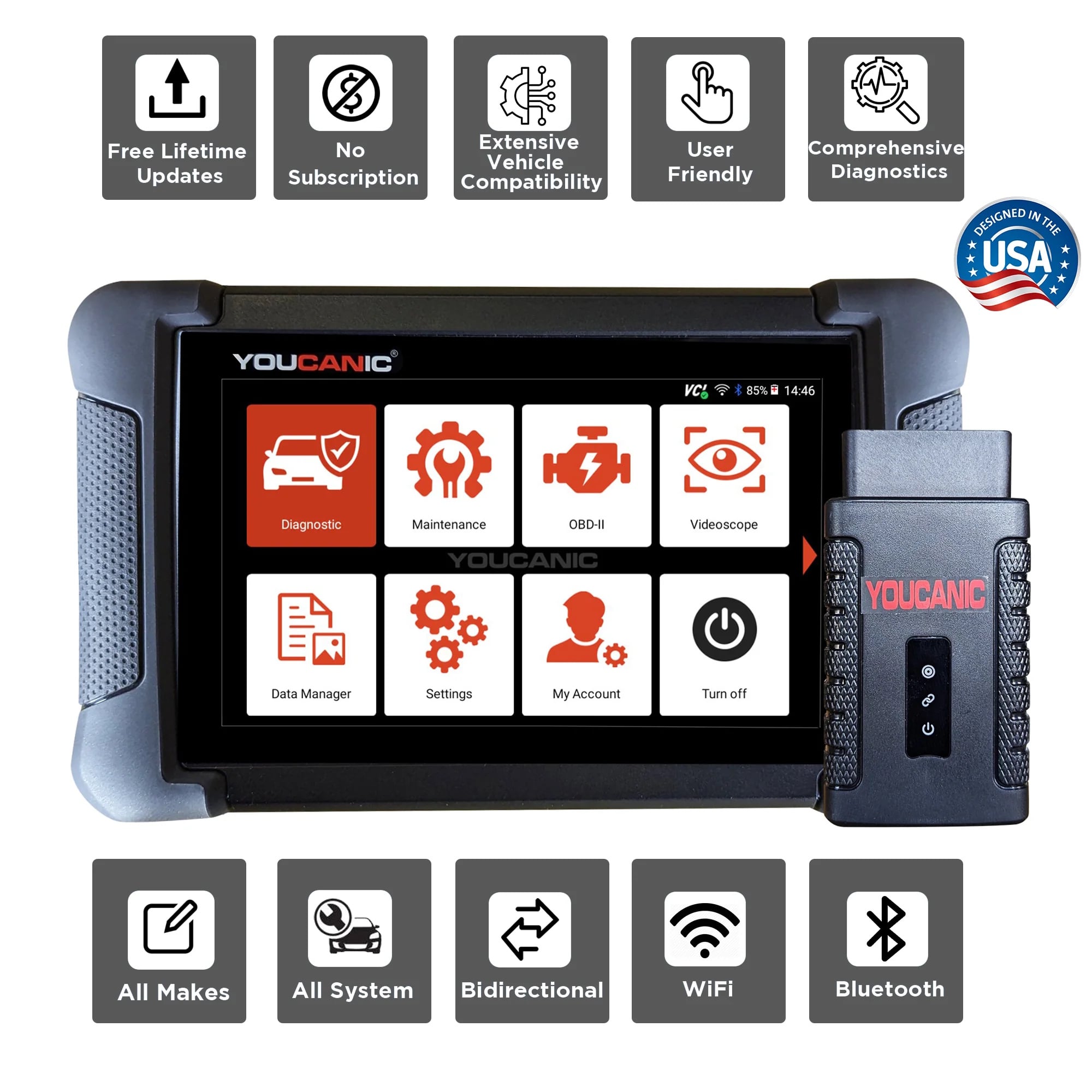
Get dealer level diagnostics at home with the YOUCANIC Full System Scanner.
- ✔ Works with all makes and models, including most luxury brands
- ✔ Topology map view shows all vehicle modules on one screen for faster diagnostics
- ✔ Bi directional controls to test fans, pumps, actuators and more so you do not have to guess
- ✔ Special resets and calibrations such as ABS bleed, EPB service, battery registration and more
- ✔ Free lifetime updates with no recurring fees
Step-By-Step Guide
- Connect your scanner to your car by plugging your VCI adapter into the OBD-II port on the driver’s side of your car. If you don’t know where it is in your car, look it up in your car’s owner’s manual or try to find the location online.

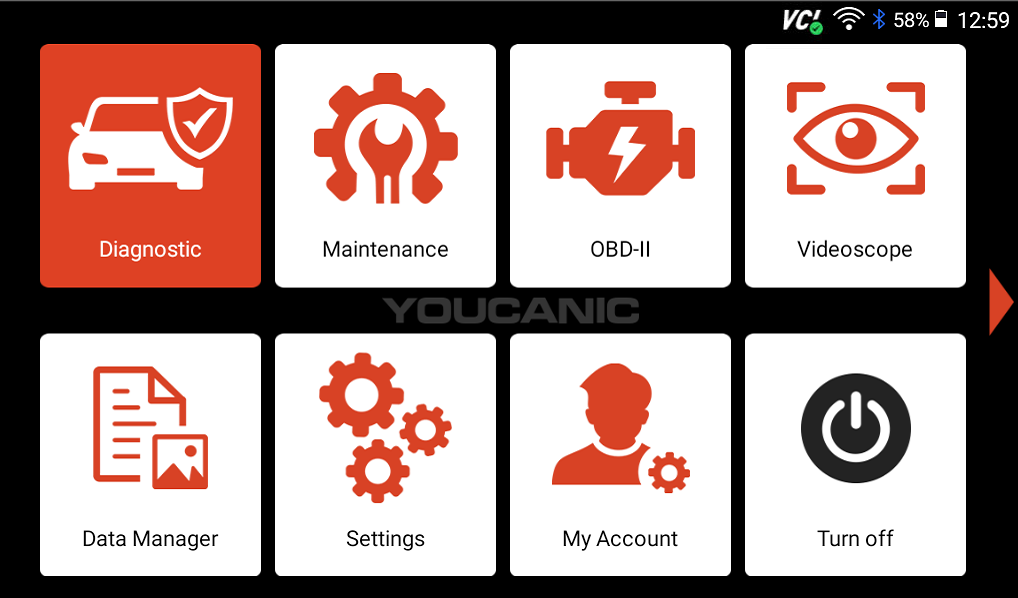
- Select Diagnostic on the homescreen and find your vehicle make on the list.

- Select Smartvin, and your scanner will begin communicating with your car’s systems. If the Smartvin option does not work, you will have to manually enter your car’s information.

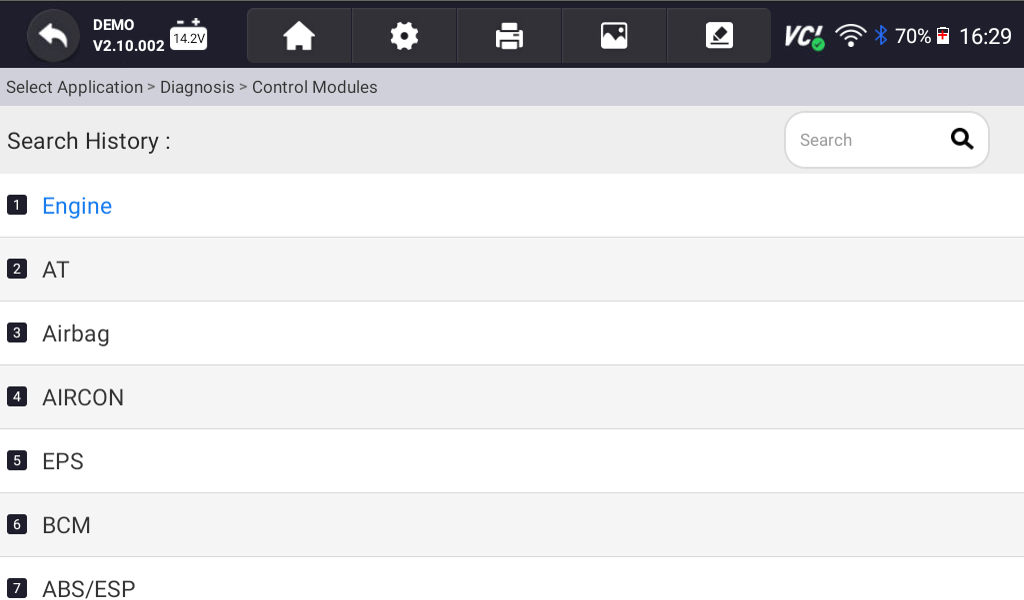
- On the following screens, select Diagnose, then Control Modules.
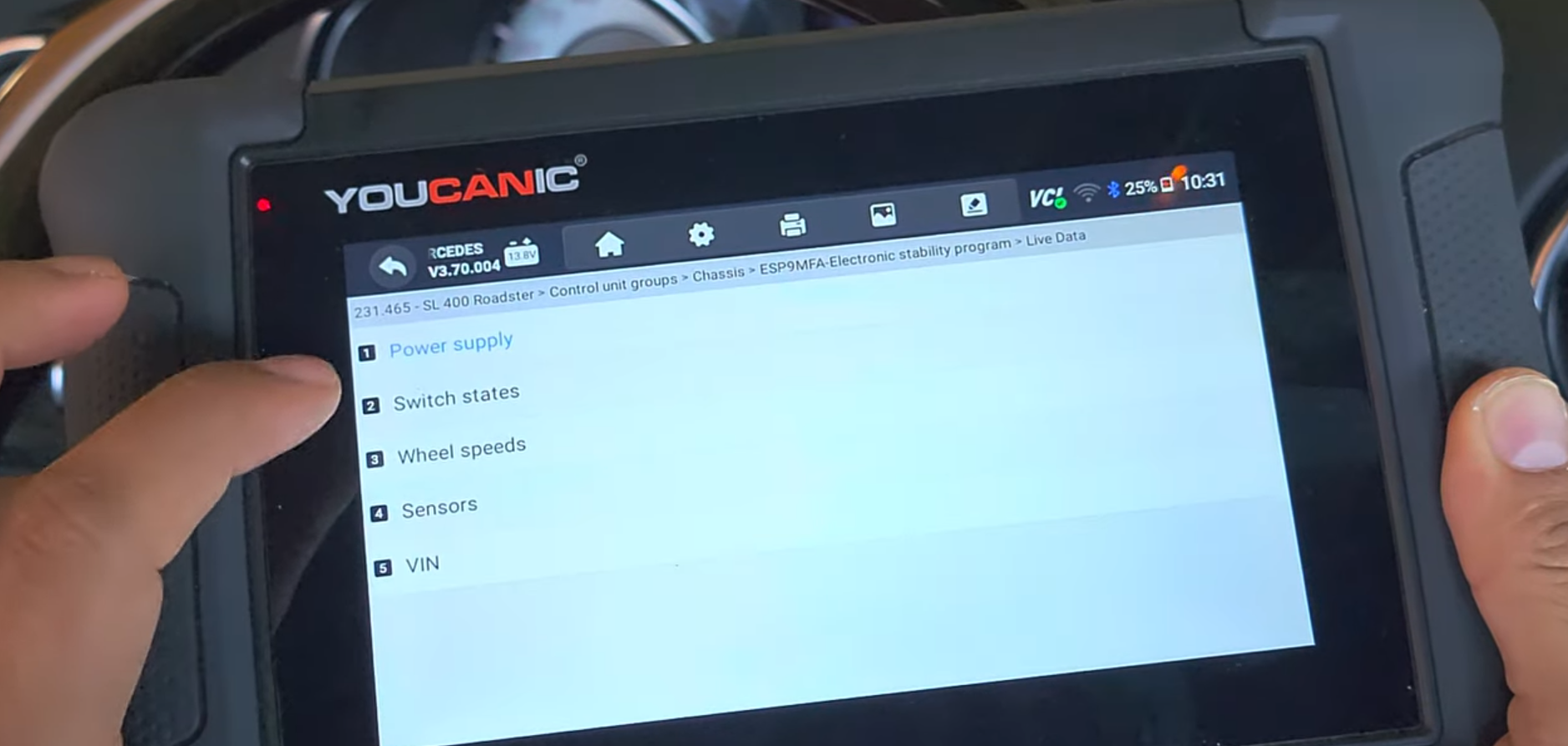
- From here, things get a little tricky. In order to access live data to properly record and determine which sensor is faulty, you will need to know where to look. In the video above, which features a Mercedes, you select Chassis, then select Electronic Stability Program. However, the image below does not list chassis as an option, so you would instead have to select TPMS.
If you don’t know where to go, run a quick scan and look for an ABS fault. Find the system that the fault originated from, then go back to Control Modules and select the module.
- Once you have found and selected the right control module, go to Live data.

- On the following screen, select Wheel speeds.

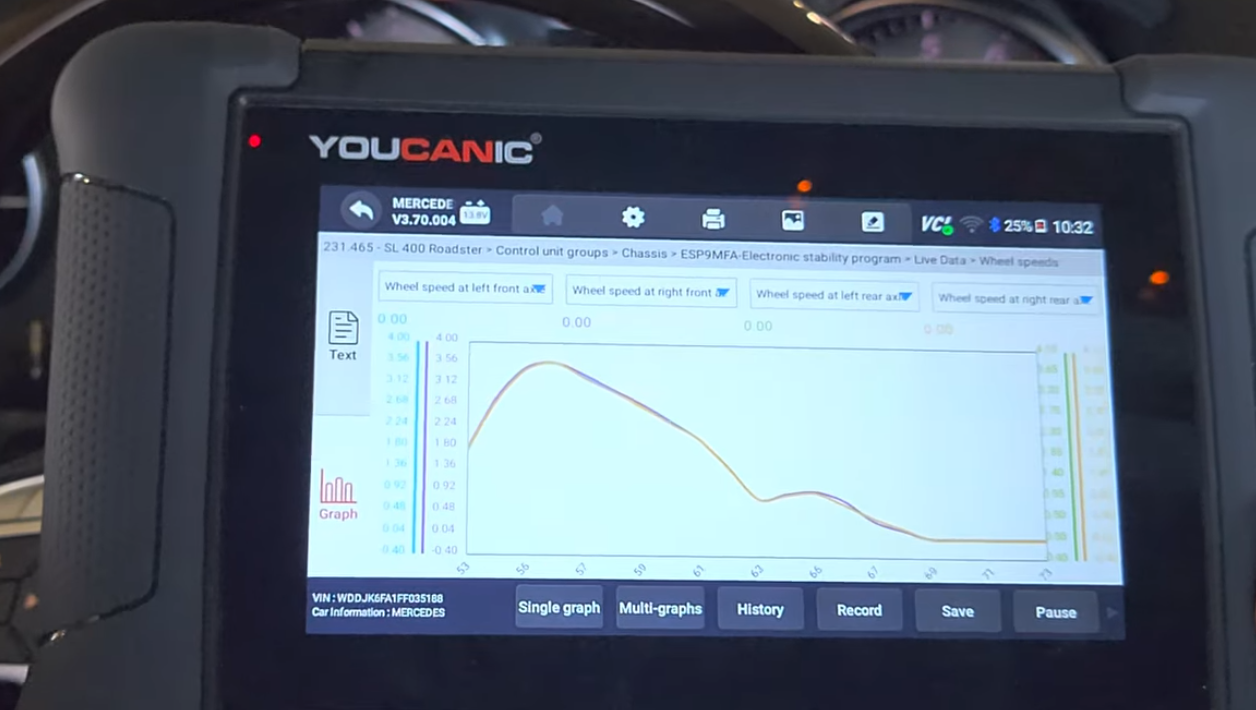
- You should now be seeing live data for each of your vehicle’s ABS wheel speed sensors.

- Press the Record button at the bottom of your screen, set your scanner to the side, and VERY CAREFULLY drive your car for a few minutes.
- Once your car is safely parked in your driveway, press the Stop button to stop and save the recording, name it, and press OK.
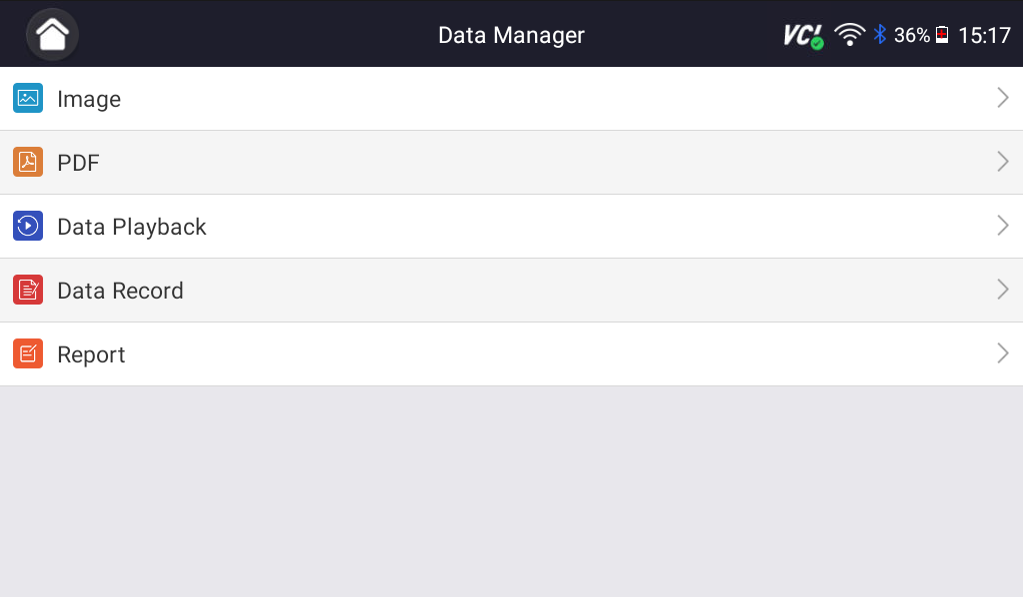
- To view the recording later, select Data Manager from the homescreen of your scanner.
- Select Data Playback and find the report you just saved on the following screen.

- To determine which sensor is faulty, you will want to look for the sensor with the lowest readings. The easiest way to do this is by selecting Graph on the left side of your screen and going to the Merge Graph option. This way, you can monitor data for every wheel speed sensor simultaneously. If one line on the graph looks odd, you have found your faulty wheel speed sensor.





Got a Faulty Sensor?
Don’t take your car to the dealership! YOUCANIC has several wheel speed sensor replacement guides on YouTube!


Disclaimer: This guide may not apply to all vehicle makes and models. If you need to verify coverage for your particular vehicle, please contact YOUCANIC support or use our Compatibility Checker.