Scanner Guide: How to run Software Updates on your YOUCANIC Scanner
Running regular software updates on your YOUCANIC scanner is important to ensure you stay up to date with YOUCANIC’s latest diagnostic developments. This step-by-step guide will show you how to update your device, ensuring it runs smoothly and efficiently for all your needs. Are you more of a visual learner? Follow along with our video guide!

Disclaimer: The scanner used in this guide is YOUCANIC’s latest UCAN-II-C model. However, these steps will work for other YOUCANIC scanner models, such as the UCAN-II-B and UCAN-HD-A scanners.
NOTE: Before running updates on your scanner, make sure you have registered it, your battery is fully charged, and you are connected to a strong internet connection.

🔧 Stop paying the dealer for every warning light
Get dealer level diagnostics at home with the YOUCANIC Full System Scanner.
- ✔ Works with all makes and models, including most luxury brands
- ✔ Topology map view shows all vehicle modules on one screen for faster diagnostics
- ✔ Bi directional controls to test fans, pumps, actuators and more so you do not have to guess
- ✔ Special resets and calibrations such as ABS bleed, EPB service, battery registration and more
- ✔ Free lifetime updates with no recurring fees
1. On the second screen of the homepage, select the Update icon. In the top-right corner of the icon, a number usually indicates how many updates are available.

2. Wait for the system to upload all available updates.

3. At the bottom right of this page, find and select the Update All button, and wait for all available updates to finish.
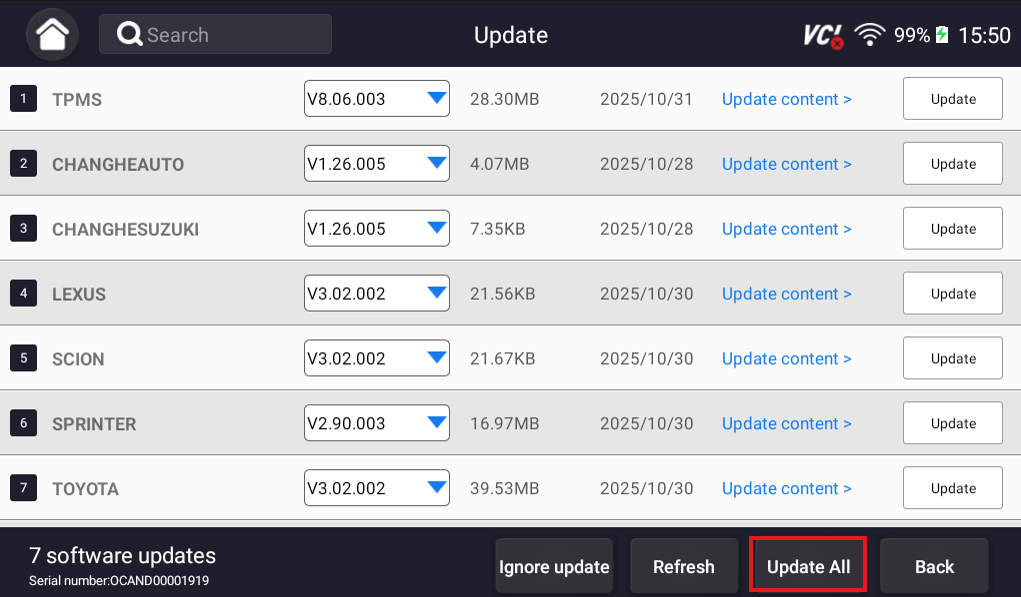
5. The device may automatically restart. If it does, return to the Updates section and check for updates again.
6. Continue this process until there are no more available software updates. The number at the bottom left corner of the screen will tell you how many updates are left.
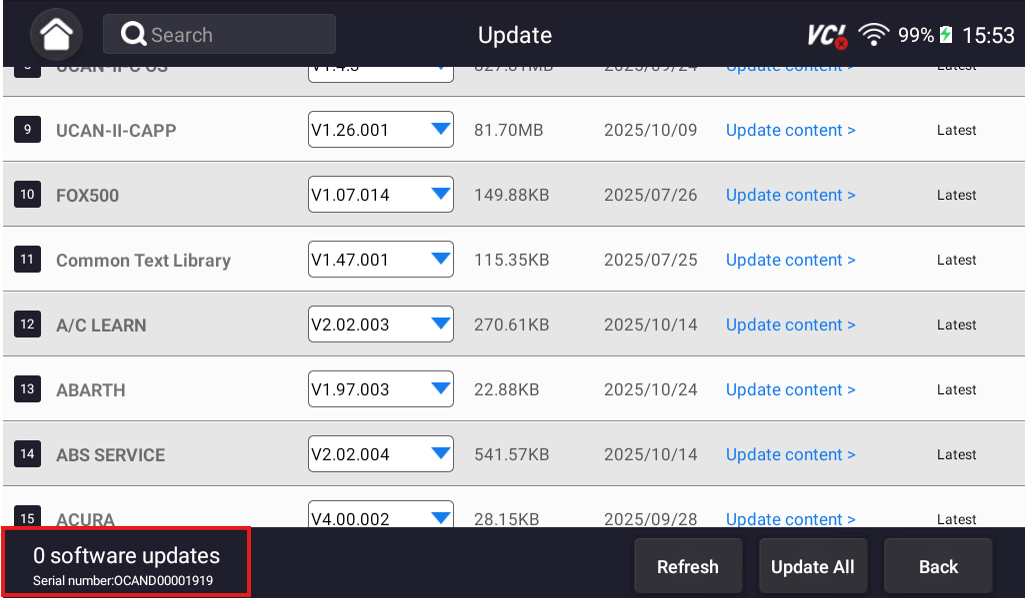
By following these steps, your device will operate more efficiently, with improved performance and access to the latest software. This ensures greater reliability and accuracy when diagnosing issues, allowing you to get the best performance from your scanner every time.
Troubleshooting Tips:
- If the update process freezes or takes longer than expected, try restarting the device and checking your internet connection before attempting the update again.
- If your device does not automatically restart after the update, power it off manually by holding the power button for five seconds, selecting “Power off,” and turning it back on to complete the process.
If you encounter any issues or have questions during the update, please contact our Support Team for assistance. We are here to help ensure your device is running at its best.
For more help with your scanner, check out our other scanner guides!