Scanner Guide: How to run a Quick Scan
Reviewed/Verified by:

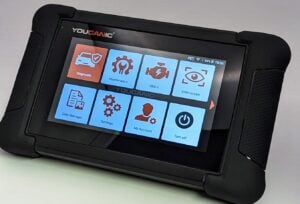
Have you recently purchased a YOUCANIC full-system scanner? Welcome to the YOUCANIC family! This quick and easy step-by-step guide will walk you through how to run a quick scan for the first time.
At a Glance
- Time: a few minutes for a full vehicle scan on most cars
- Path: Diagnostic, choose your make or use the VIN function, Diagnosis, Quick Scan
- Scan all: use Select All, then Fault Scan
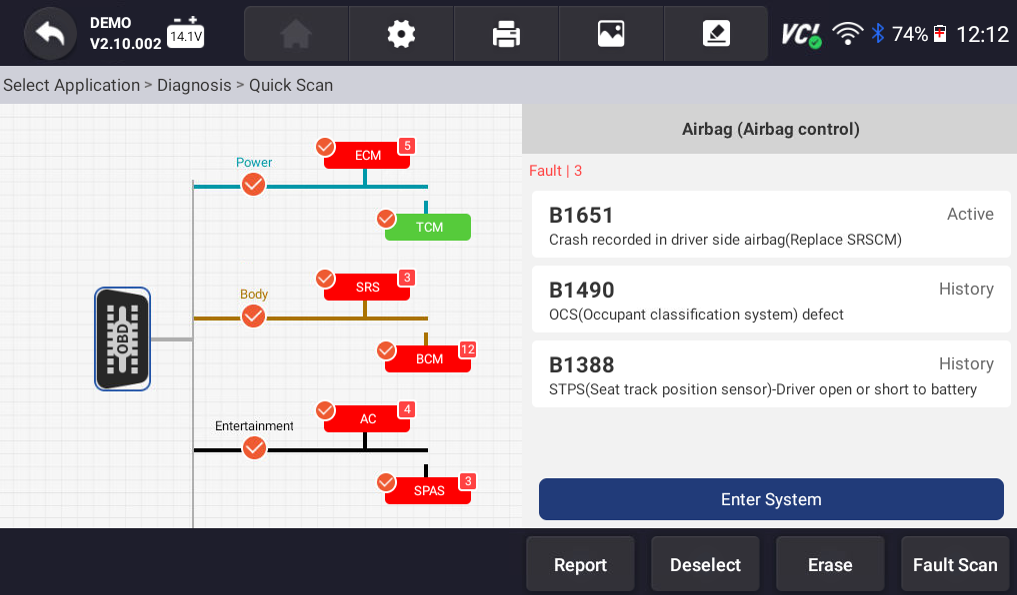
- Red items: modules with stored fault codes
- Tip: ignition on, engine off, and a healthy battery
Before you keep reading, please check out our guides “How to Register and Update Your YOUCANIC UCAN-II Pro scanner for the First Time” and “How to run Software Updates on your YOUCANIC UCAN-II Pro scanner” first.
In a rush? No worries. You can register and update your scanner later. Just because your scanner isn’t registered doesn’t mean you won’t have access to all of the diagnostic functions your scanner has to offer!

🔧 Find out what is actually wrong before you pay someone to guess
Dealer level diagnostics at home with the YOUCANIC UCAN-II Pro.
- ✔ Covers most makes and models, including many luxury brands. Send us your VIN and we will confirm your car before you order
- ✔ Reads every module, not just the engine, so you find the faults a basic reader says are not there
- ✔ Commands the car: test a fan or pump, bleed ABS, retract an electronic parking brake, register a battery
- ✔ No subscriptions. Free lifetime updates, so the price you pay is the whole price
- ✔ Backed by real mechanics in the USA you can email before and after you buy
Featured in The Wall Street Journal
Are you more of a visual learner? Watch our video guides below!


NOTE: The scanner used to create this guide was YOUCANIC’s latest model, the UCAN-II-C Pro. These steps will still work if you own an older UCAN-II scanner or a heavy-duty truck scanner.
Step-by-step Guide
1. Connect your VCI adapter, and make sure that your scanner has connected properly. Next, turn your car on, but don’t start the engine. If you have a car with a push-to-start feature, press the start button without pressing down on the brake pedal.
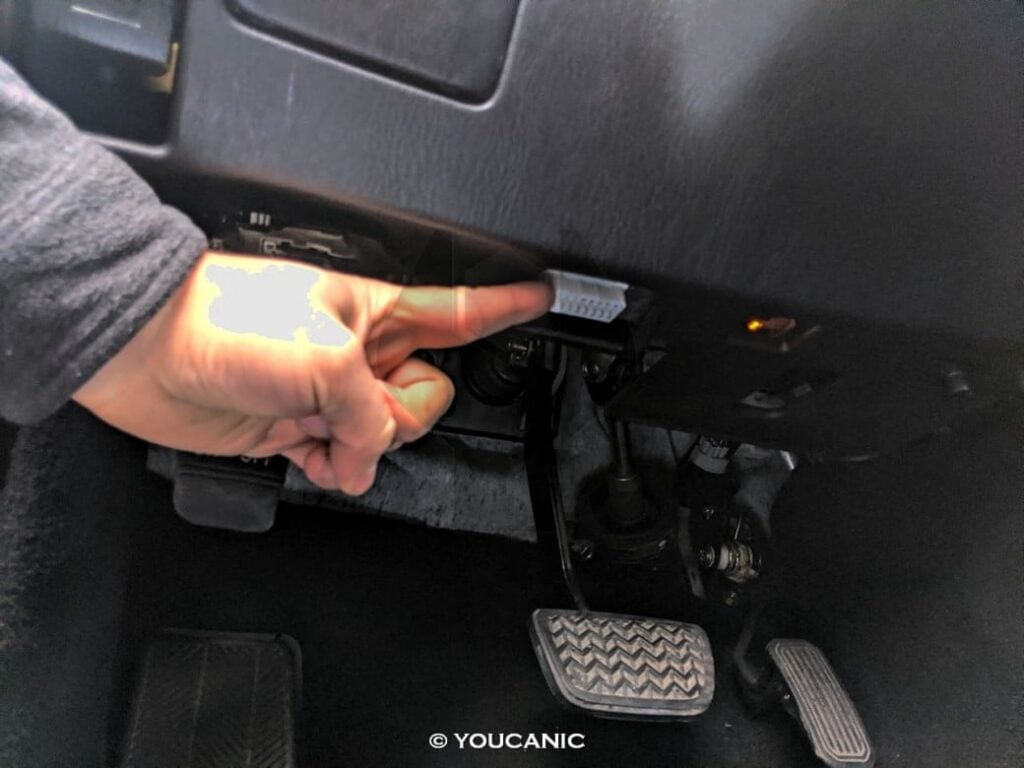
NOTE: The location of your OBD-II port varies by vehicle. If you don’t know where yours is located, look it up in your vehicle’s user manual or find it online!
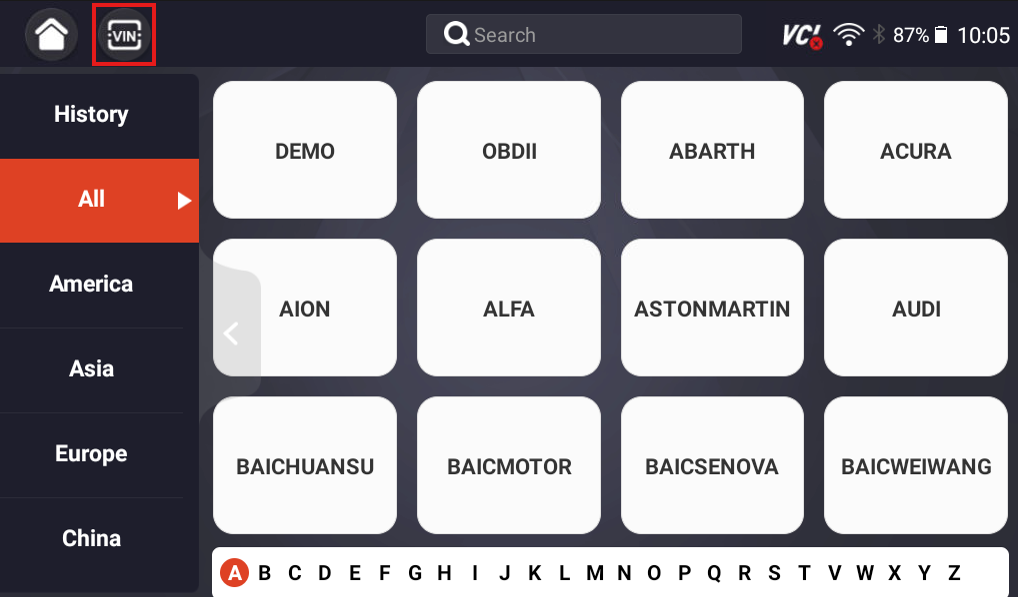
2. Go to Diagnostic on the home page of your scanner, and select your vehicle make from the list on the following screen.

3. Alternatively, you can use the smartvin function or manually insert your VIN using the manual entry option. To access this section, tap on the VIN icon at the top left of your screen.
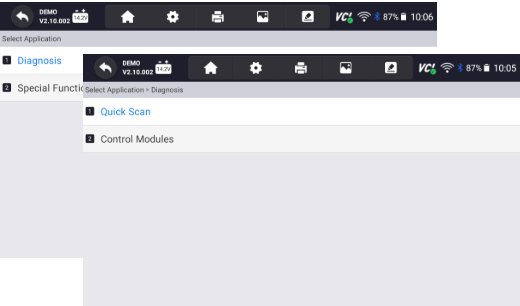
4. Select Diagnosis on the following screen, then select Quick Scan.
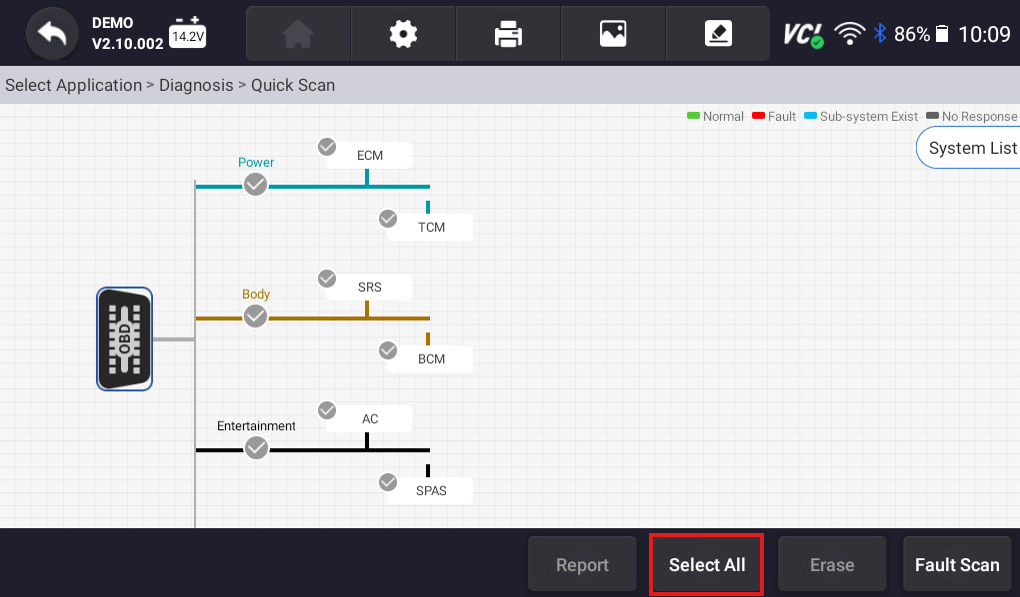
5. From here, you can select a specific section or module to scan, or you can scan all modules using the Select All option at the bottom of the screen.
6. Once you have selected the modules you would like to scan, press the Fault Scan button.
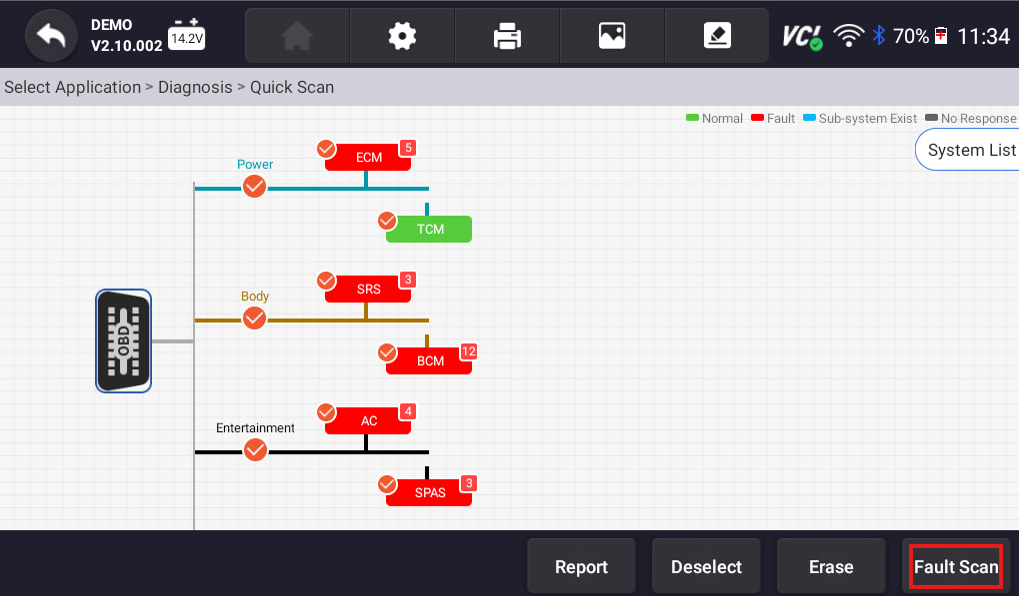
7. Once the scan is complete, you can select any of the options in red to view fault codes, and enter that specific system to clear fault codes or view live data.
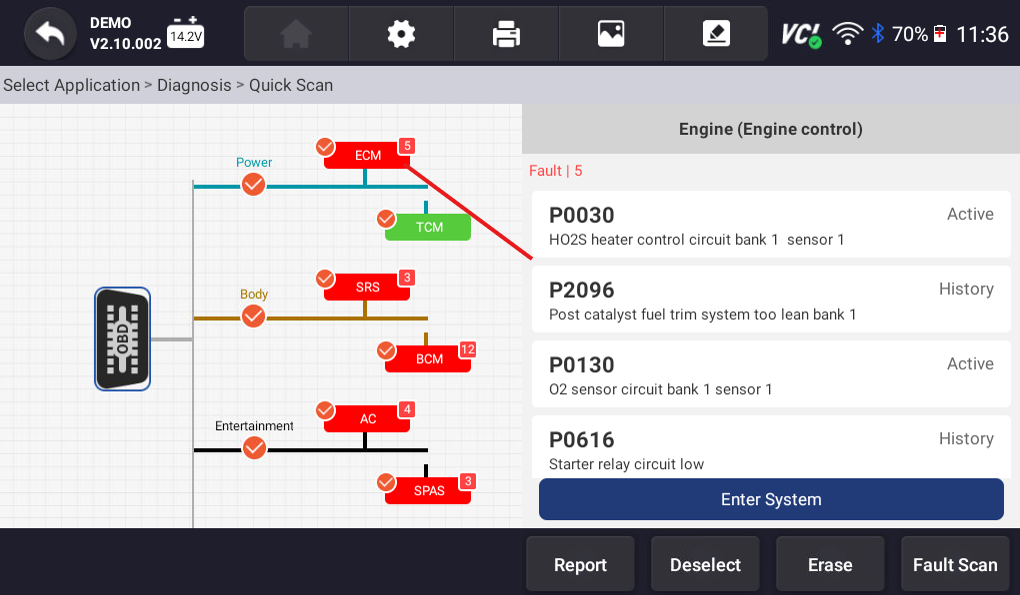
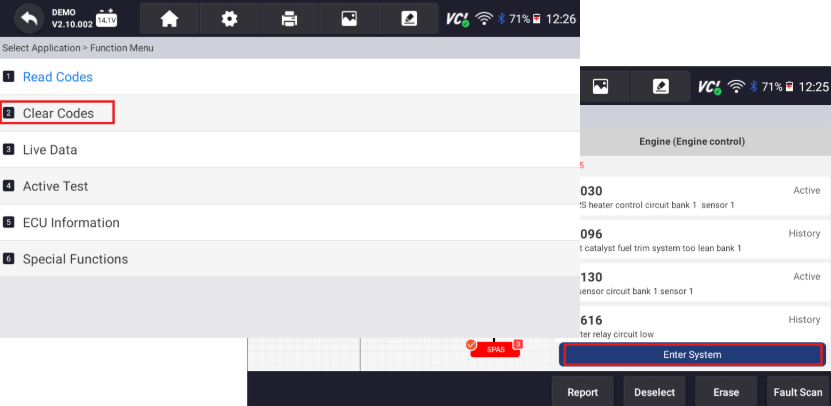
8. To clear fault codes, select Enter System on any module, then select Clear Codes.
Congratulations! You have successfully completed your first quick scan. If you run into any trouble during this process, feel free to reach out to YOUCANIC Support at support@youcanic.com!
Looking for more help with your scanner? Check out our other scanner guides for more help with your scanner. Don’t see a guide that fits your needs? Just contact YOUCANIC support!
After the Scan: What to Do With the Results
- Write down or save every code first. Clearing codes erases freeze frame data that helps pinpoint the problem.
- Start with the module that matters most: engine, transmission, ABS and airbag faults come before body or comfort modules.
- Low voltage codes in many modules at once often point to a weak battery or a past jump start. Charge or test the battery, clear the codes and scan again.
- Clear, then drive and rescan. A code that comes right back is an active fault. A code that stays gone was likely historical.
- Use live data in the module to confirm the fault before buying parts.
Frequently Asked Questions
Do I need to register my scanner before running a quick scan?
No. You can run a quick scan right away and register and update the scanner later.
Should the engine be running during a quick scan?
Turn the ignition on with the engine off for most scans. Make sure the battery is healthy, since low voltage can interrupt communication.
Why do I see codes in many modules at once?
A weak battery, a jump start or a recent battery disconnect can set low voltage codes in several modules. Clear them, then rescan to see which faults return.
Related Guides
- How To Run Active Tests Using a YOUCANIC Scanner
- Scanner Guide: How to run Firmware Updates on Your YOUCANIC Scanner
- Scanner Guide: How to run Software Updates on your YOUCANIC Scanner
- 2016 Land Rover Range Rover: How my YOUCANIC Scanner saved me Hundreds in Repairs!