Scanner Guide: How to run Firmware Updates on Your YOUCANIC Scanner
Reviewed/Verified by:

Are you having trouble with your scanner? Maybe your VCI isn’t connecting to your scanner properly? It might be time to run some firmware updates on your scanner.
Regular firmware updates are crucial to keep your scanner functioning properly. This guide will walk you through the process of setting up and running firmware updates on your YOUCANIC full-system scanner.
Are you more of a visual learner? Follow our video guide below!

🔧 Find out what is actually wrong before you pay someone to guess
Dealer level diagnostics at home with the YOUCANIC UCAN-II Pro.
- ✔ Covers most makes and models, including many luxury brands. Send us your VIN and we will confirm your car before you order
- ✔ Reads every module, not just the engine, so you find the faults a basic reader says are not there
- ✔ Commands the car: test a fan or pump, bleed ABS, retract an electronic parking brake, register a battery
- ✔ No subscriptions. Free lifetime updates, so the price you pay is the whole price
- ✔ Backed by real mechanics in the USA you can email before and after you buy
Featured in The Wall Street Journal

NOTE: The scanner used to create this guide was YOUCANIC’s latest model, the UCAN-II-C Pro. These steps will still work if you own an older UCAN-II scanner or a heavy-duty truck scanner.
Step-by-Step guide
1. Connect your VCI to your scanner using a charging cable, with the USB-A end connected to the USB port of your scanner, and the USB-C end connected to the USB-C port of the VCI.

2. Turn your scanner on, and open the Firmware Updates page. Then select the VCI firmware update.

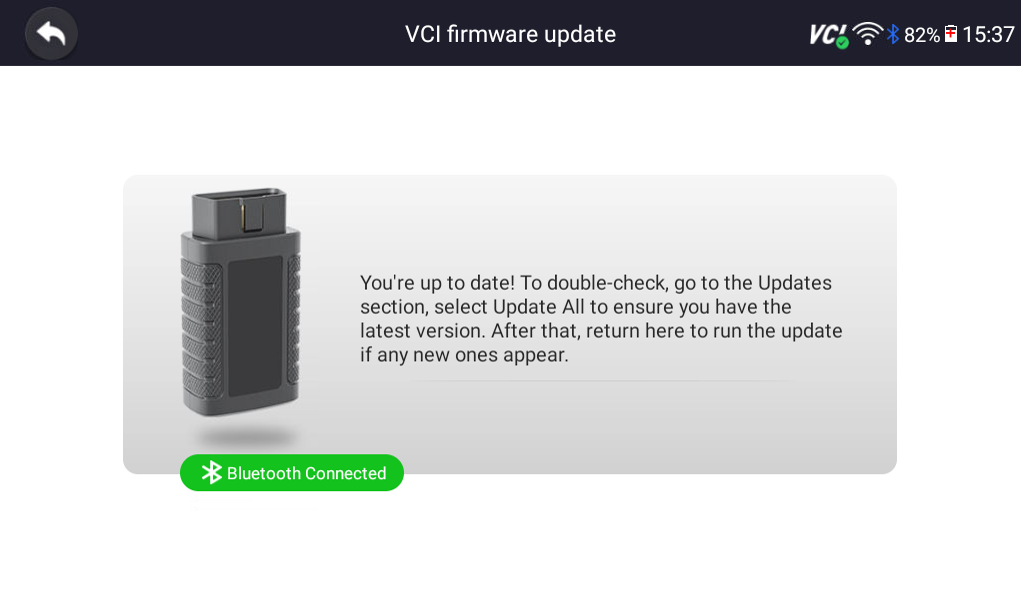
3. Run available firmware updates. If there are no available firmware updates, the message below will appear on the screen.

It’s that easy! Just connect your VCI to your scanner and run firmware updates. If you run into any trouble during this process, contact our support team at support@youcanic.com, and don’t forget to check out our other scanner guides for more help with your scanner.