Scanner Guide: How to Take a Screenshot
Are you seeing something strange while reading live data or running a quick scan on your scanner? Take a screenshot to take a look at later!
Are you more of a visual learner? Follow along with our video guide!

NOTE: The scanner used to create this guide is our latest UCAN-II-C Pro model; however, these steps should work on our other scanners, including our UCAN-HD-A, heavy-duty truck scanner.

🔧 Stop paying the dealer for every warning light
Get dealer level diagnostics at home with the YOUCANIC Full System Scanner.
- ✔ Works with all makes and models, including most luxury brands
- ✔ Topology map view shows all vehicle modules on one screen for faster diagnostics
- ✔ Bi directional controls to test fans, pumps, actuators and more so you do not have to guess
- ✔ Special resets and calibrations such as ABS bleed, EPB service, battery registration and more
- ✔ Free lifetime updates with no recurring fees
1. Taking a screenshot is quick and easy. In fact, you may have accidentally taken a screenshot when trying to turn your scanner off! All you have to do is quickly click the power button on the top of your scanner twice.

When you successfully take a screenshot, the screen will look like this:


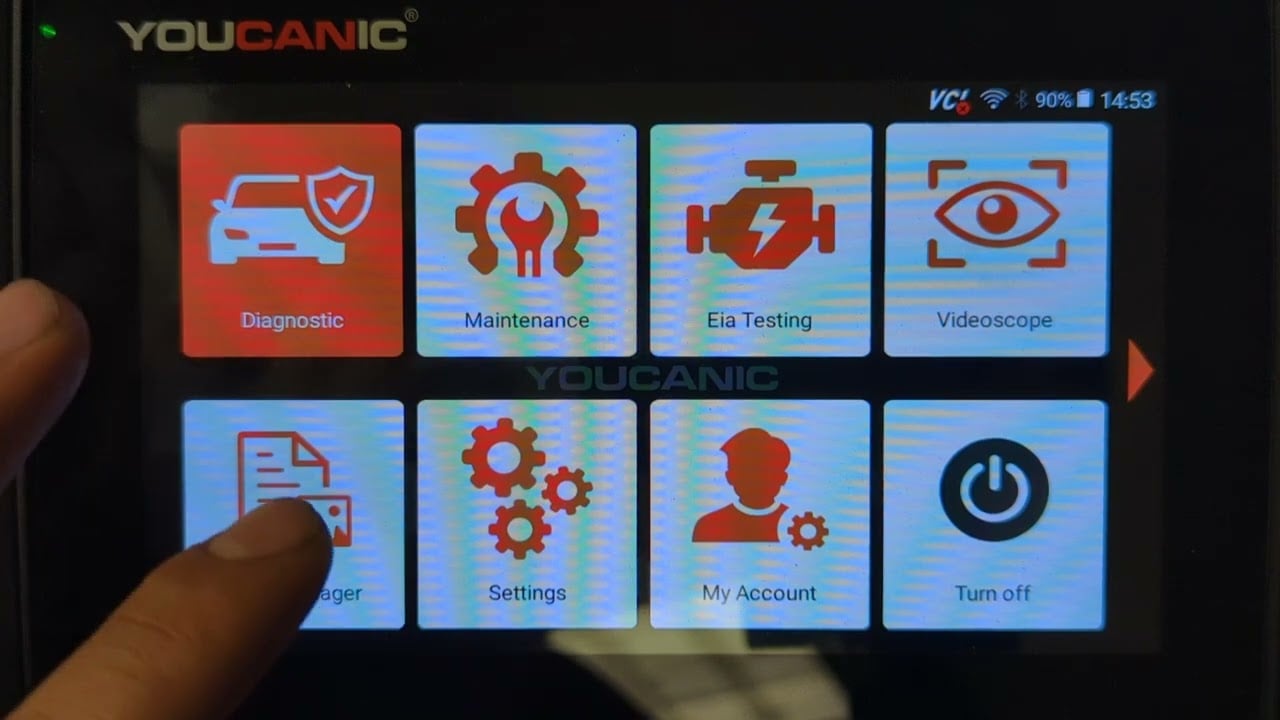
2. To view, edit, print, or delete these screenshots, select Data Manager, then Image on the following screen.

3. Select System Screenshot. Most screenshots will be saved here, and not in the Diagnostic Screenshot page.

4. On the following screen, all of the screenshots that you have taken will appear. To bulk edit or delete screenshots, press and hold an image and select the screenshots you would like to edit.

You can select multiple screenshots by tapping on them one by one, or select all available screenshots by pressing the “Select All” button (highlighted in red above). To rename these screenshots, press “Rename” (green), to delete selected screenshots, select “Delete” (blue), and to cancel and deselect all images, press “Cancel” (yellow).
5. To edit or print an individual screenshot, select it, and on the following page, you will have the option to print, rename, or delete the screenshot.

That’s all! You have successfully taken a screenshot and now know how to view, edit, or print it for future reference. For more help with your scanner, check out our other scanner guides. Happy scanning!