Scanner Guide: How to Reset the Password on your YOUCANIC Scanner
Have you been logged out of your YOUCANIC Scanner? Sometimes, when you are logged out, your scanner will remember your password, and sometimes it won’t. If your scanner has forgotten your password and you have also forgotten it, this guide is for you!
Are you more of a visual learner? Follow along with our video guide!
NOTE: The scanner used to create this guide is our latest UCAN-II-C Pro model; however, these steps should work on our other scanners, including our UCAN-HD-A, heavy-duty truck scanner.

🔧 Stop paying the dealer for every warning light
Get dealer level diagnostics at home with the YOUCANIC Full System Scanner.
- ✔ Works with all makes and models, including most luxury brands
- ✔ Topology map view shows all vehicle modules on one screen for faster diagnostics
- ✔ Bi directional controls to test fans, pumps, actuators and more so you do not have to guess
- ✔ Special resets and calibrations such as ABS bleed, EPB service, battery registration and more
- ✔ Free lifetime updates with no recurring fees
Step-By-Step Guide
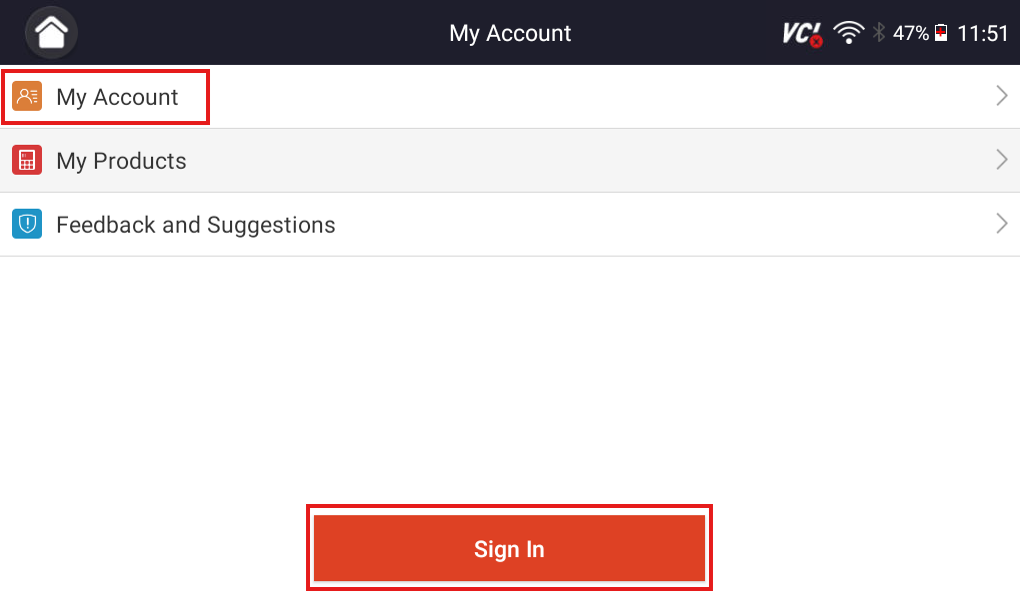
1. Go to the “My Account” app from your scanner’s home screen.
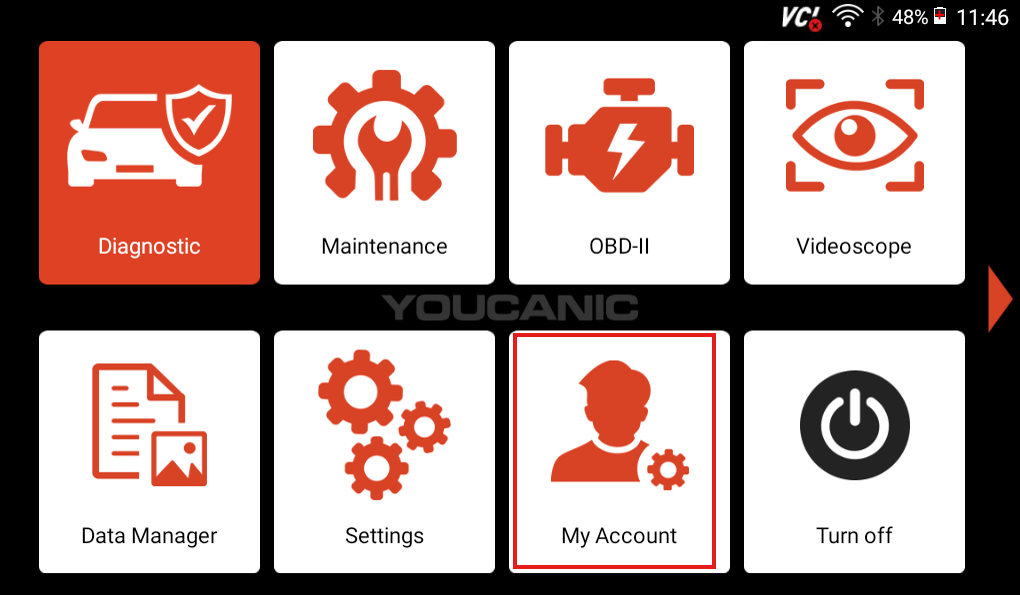
2. Select either “My Account” or “Sign In.” Both will take you to the same login page.
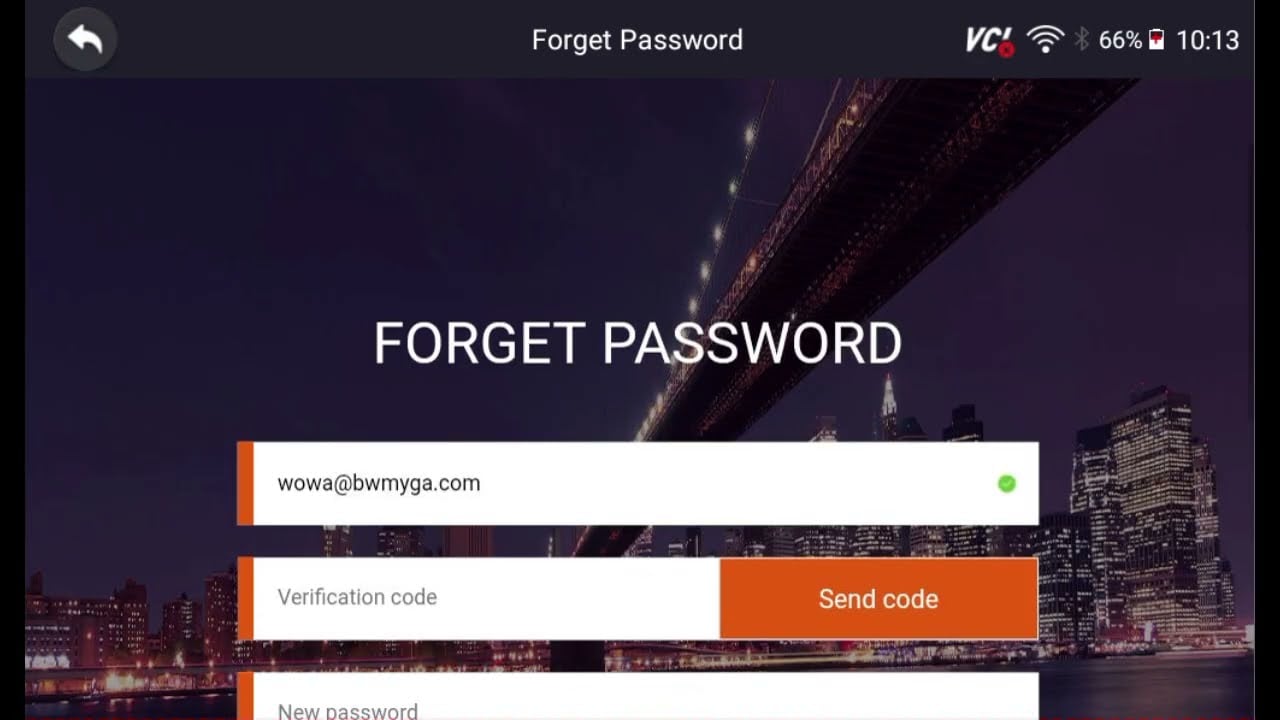
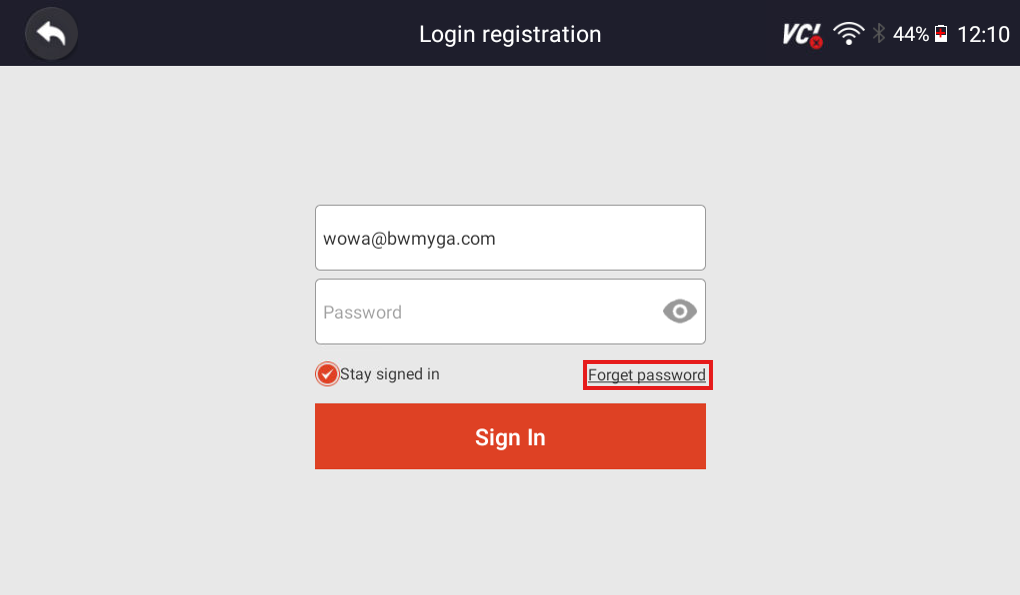
3. Select the “Forget password” button on the following page.
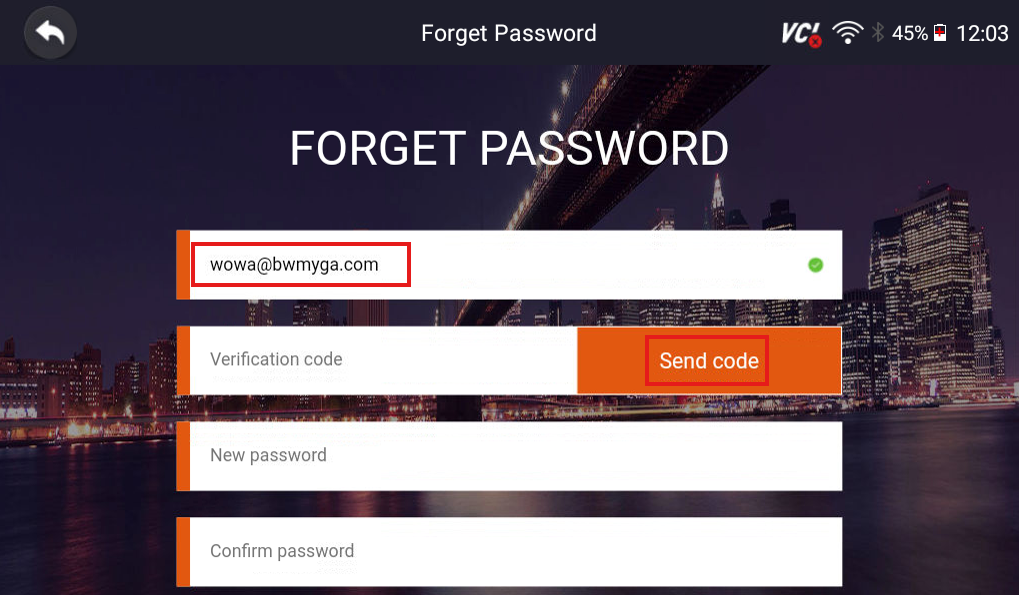
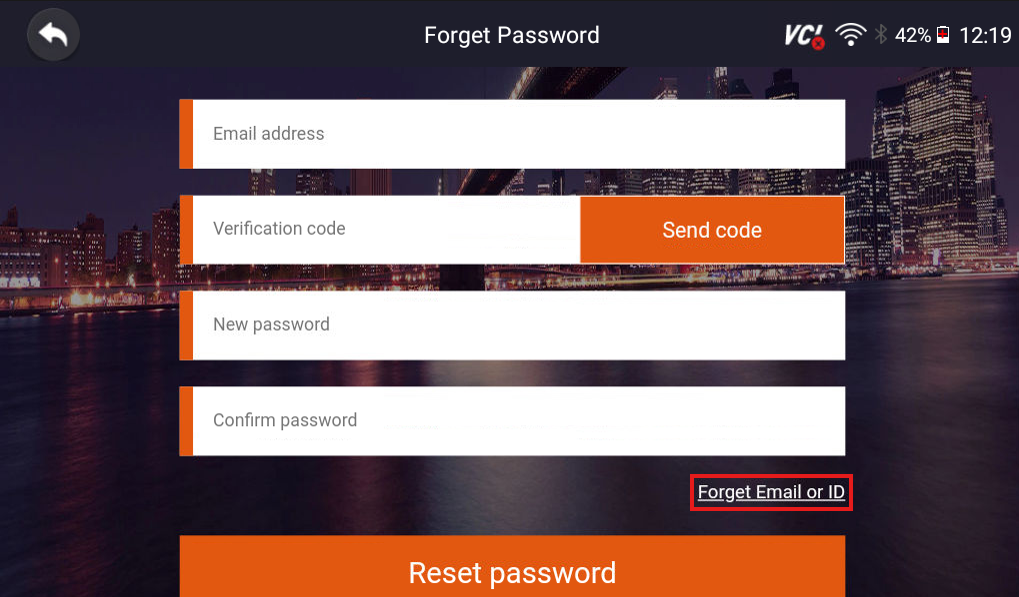
4. Enter the email address you used to create an account, and select the “Send Code” button. If you have also forgotten the email you used to register your scanner, scroll to the end of this article for steps on how to recover your email.
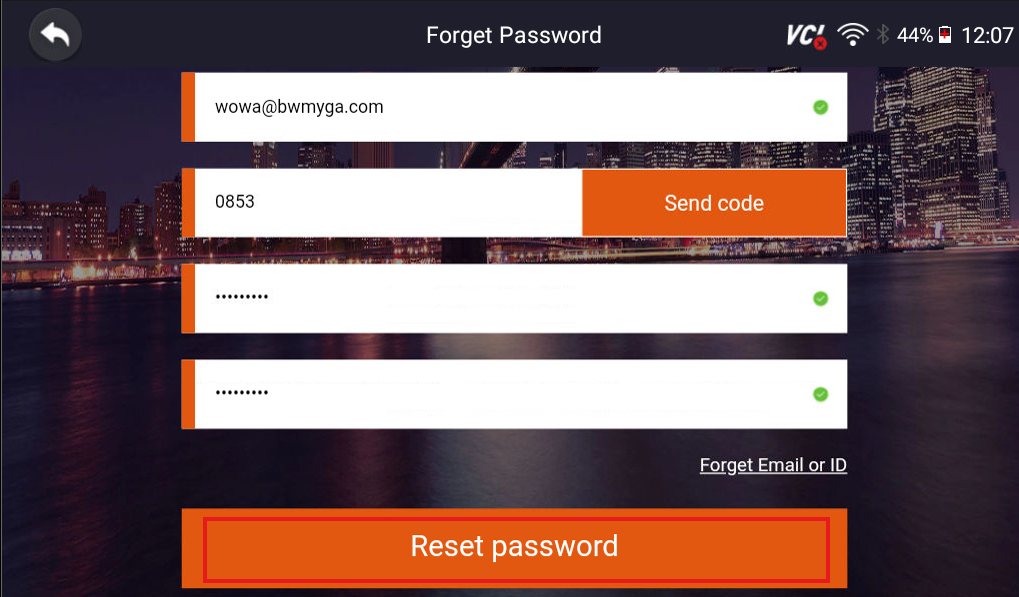
5. Enter the four-digit verification code sent to your email, enter a new password, and hit the ‘Reset Password’ Button. A pop-up will appear on the screen telling you that the password reset was successful.
NOTE: To avoid having to go through these steps again, write your new password down somewhere, or choose one that is easy to remember.
6. Go back to the main login page and log in using your updated password.
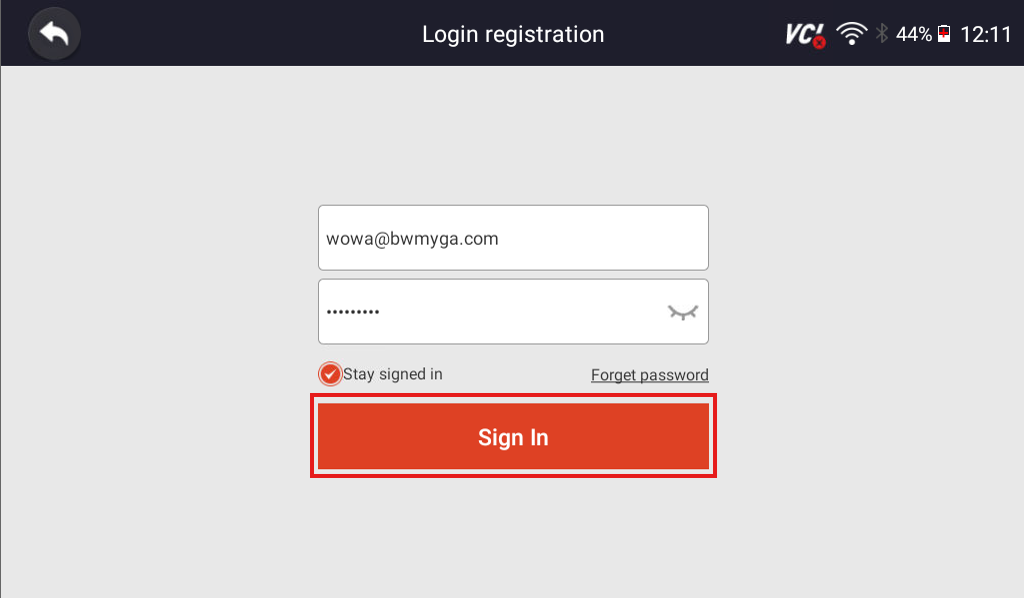
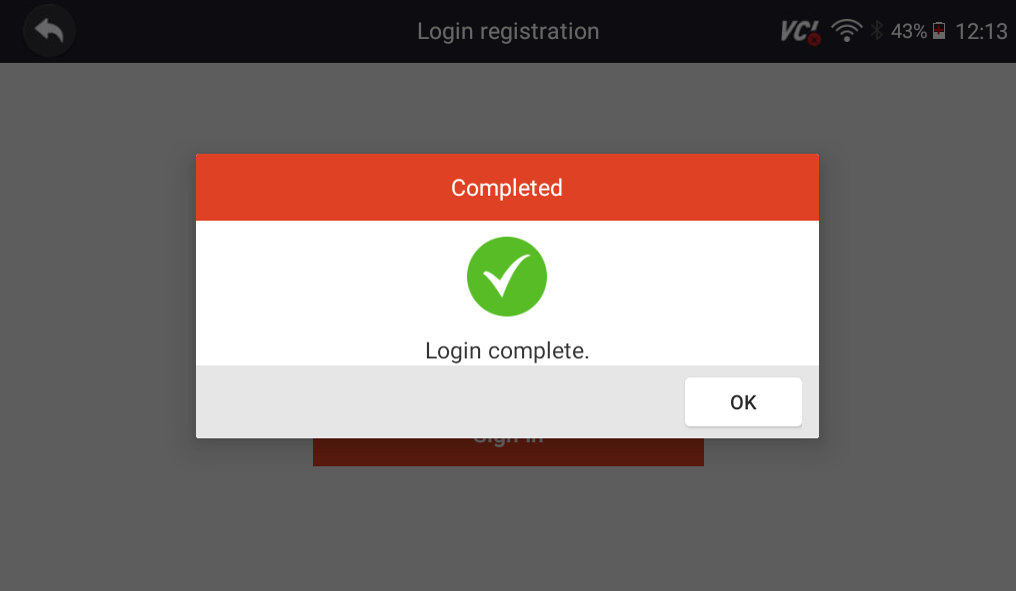
7. A “Login complete” message will appear upon a successful login.
How to Find Your Email
If you have also forgotten the email address that you used to register your scanner, begin reading here.
1. Once you make it to the “Forget Password” section, select the “Forget Email or ID” button towards the bottom of the page.
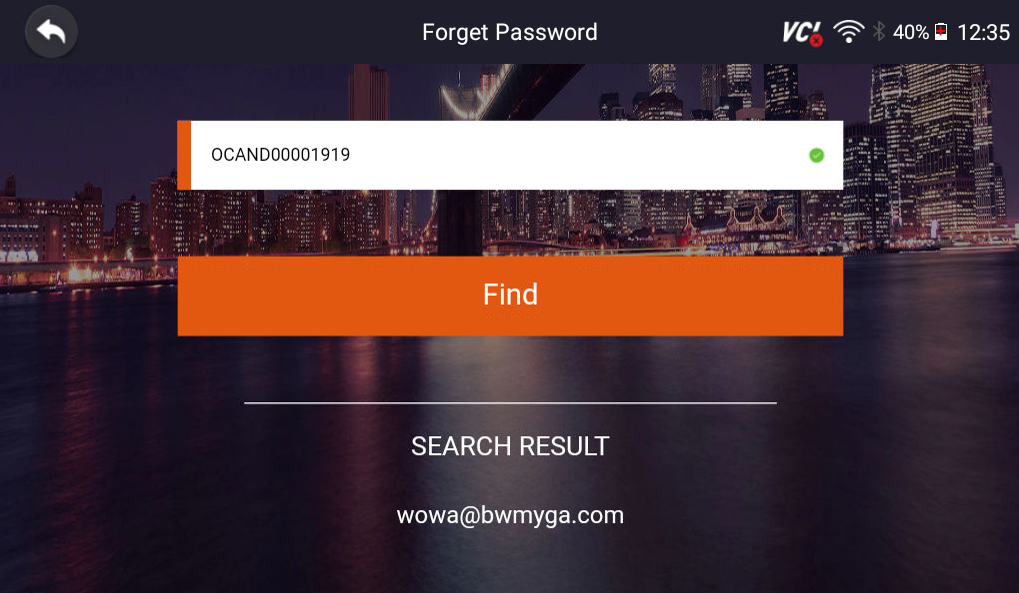
2. To find the email registered to your scanner, enter the serial number on the back of your scanner and press the “Find” button. Scanner serial numbers typically start with “OCAN” and can be found under the barcode on the back of your scanner.
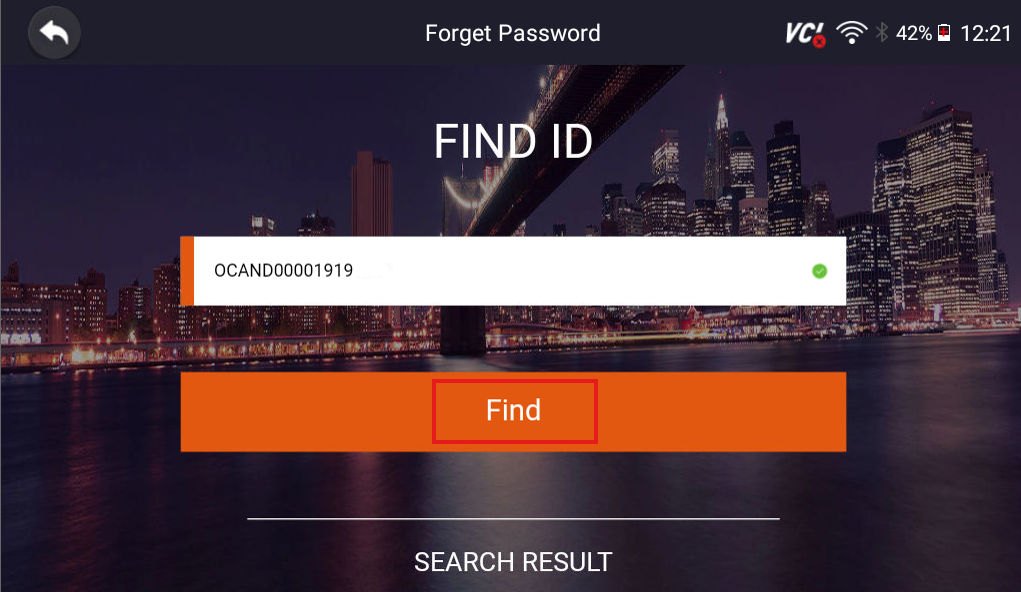
NOTE: If you have had to replace the VCI adapter on your scanner, you will need to enter the serial number on the back of the adapter, and not the serial number on the back of your scanner. When you pair a new VCI to your scanner, the serial number registered to your scanner will change.
3. Once you press the “Find” button, your email address will appear below. With this email, you can follow the steps above.
If you no longer have access to the listed email address, email YOUCANIC support at support@youcanic.com with a brief explanation of your issue and your scanner’s serial number. A member of our support team will unregister the scanner so that you can create a new account on your scanner.
NOTE: Unregistering the scanner does not erase any of the data that has been saved on the scanner. It only removes the existing account so that you can create a new account with a new email.
We hope you have found this guide, “How to Reset the Password on your YOUCANIC Scanner: Easy Step-by-Step Guide,” helpful. If you are running into more issues with your scanner, contact our support team, or check out some of our other scanner guides!