Scanner Guide: How to Save and Review Diagnostic Reports on Your YOUCANIC Scanner
Need to save a diagnostic report for future reference? This step-by-step guide will show you how to save diagnostic scan results and access them later using your YOUCANIC scanner.
We recommend saving reports every time you run a diagnostic on your scanner, so you can compare old diagnostic data to new to look for inconsistencies and discrepancies that could point to a failing component in your car.
Disclaimer: The scanner used in this guide is YOUCANIC’s latest UCAN-II-C model. However, these steps will work for other YOUCANIC scanner models, such as the UCAN-II-B and UCAN-HD-A scanners.

🔧 Stop paying the dealer for every warning light
Get dealer level diagnostics at home with the YOUCANIC Full System Scanner.
- ✔ Works with all makes and models, including most luxury brands
- ✔ Topology map view shows all vehicle modules on one screen for faster diagnostics
- ✔ Bi directional controls to test fans, pumps, actuators and more so you do not have to guess
- ✔ Special resets and calibrations such as ABS bleed, EPB service, battery registration and more
- ✔ Free lifetime updates with no recurring fees
Step-By-Step Guide
1. On the home screen, find and select Diagnostic.

2. When the VCI is properly connected to your vehicle, the scanner will automatically detect your vehicle’s VIN. If automatic detection fails, you can manually enter your vehicle information. Alternatively, select your vehicle make from the available list of cars, and proceed from there.

Perform a Quick Scan
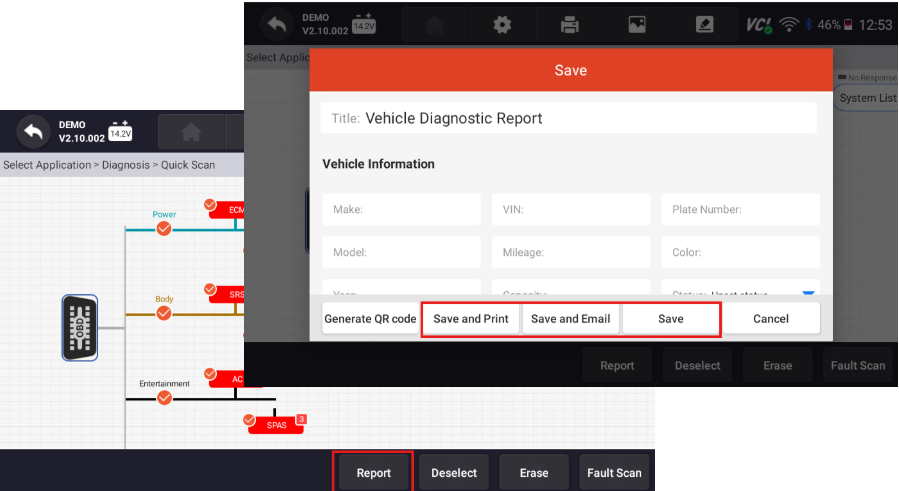
3. Select Diagnosis and Quick Scan on the following screens to initiate a comprehensive diagnostic scan of your vehicle’s systems.

4. Select the systems you wish to scan, or press the Select All button to select all available systems. Then, press Fault Scan.

4. Once scanning is complete, tap Report, then save on the following pop-up.
To View Saved Reports
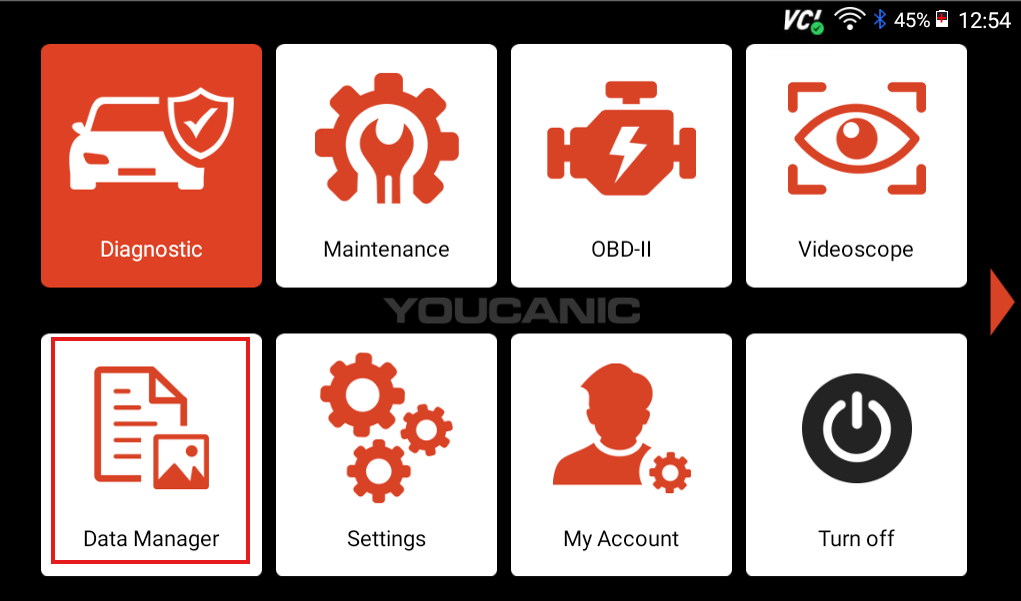
6. Return to the home screen and select Data Manager.
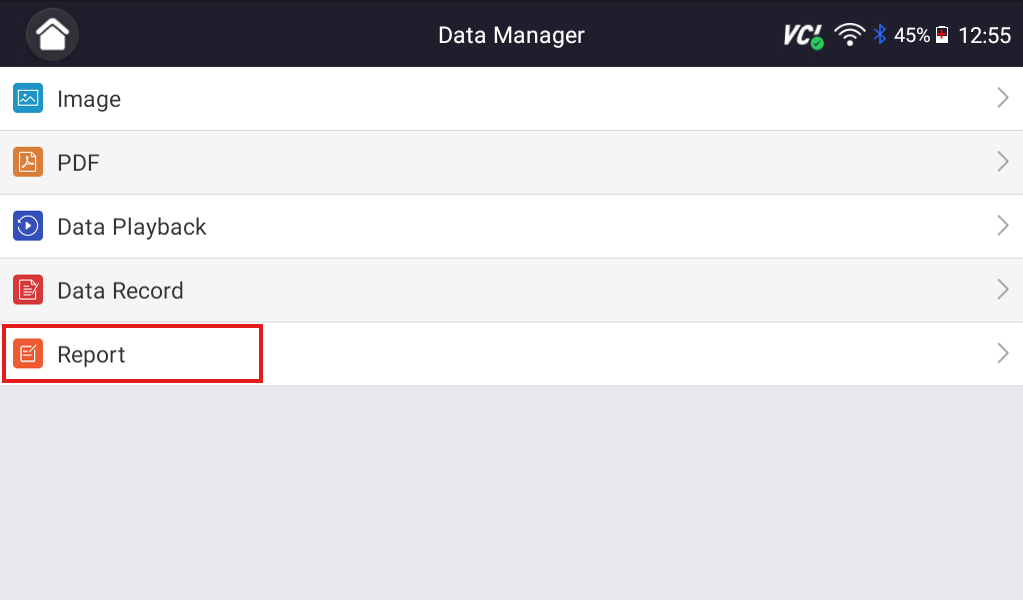
7. Select Report to view all saved diagnostic scans.
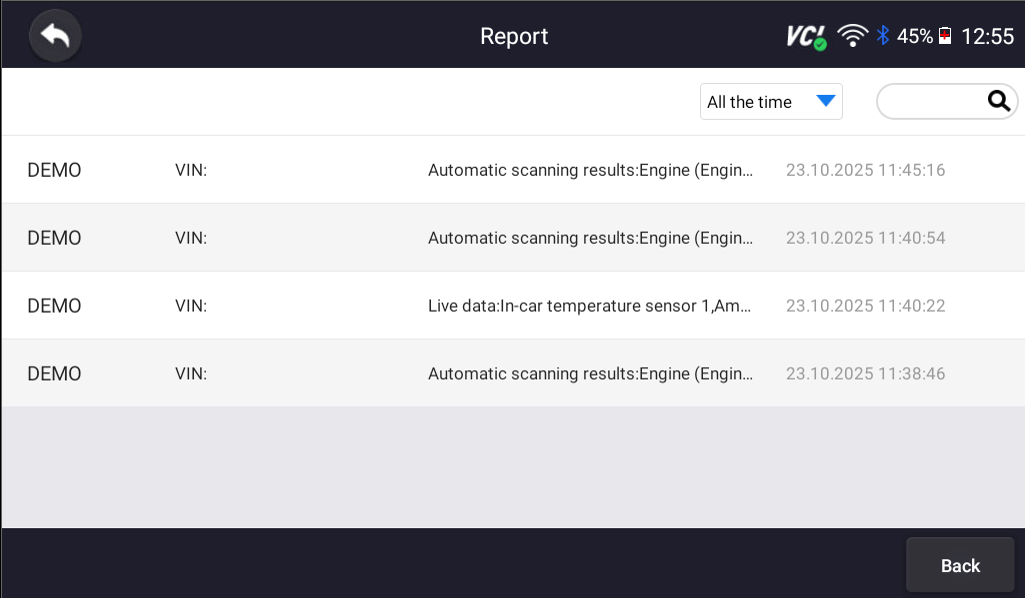
8. Scroll through your complete history of saved diagnostic reports, or use the search bar located in the top right corner to find the report you are looking for.
Saving and reviewing diagnostic scans is essential for tracking your vehicle’s performance over time. The YOUCANIC scanner makes maintaining your vehicle’s diagnostic history easy, helping you identify patterns and monitor repairs effectively. By following these steps, you can build a detailed record of your vehicle’s diagnostic data for future reference and maintenance planning.
Pro Tips for Managing Diagnostic Reports
- Save scans before and after repairs to verify repairs.
- Use descriptive names when saving reports to make them easier to identify.
- Regularly back up important diagnostic reports by emailing them to yourself.
- Regularly compare past scans to track intermittent issues.
- Keep reports organized by date and repair type.
- Document any repairs or maintenance performed alongside the scan results.
We hope you have found this guide helpful. For more help with your scanner, check out our other Scanner Guides.