Scanner Guide: How to Change the Language on a YOUCANIC Scanner
Do you need to change the language on your YOUCANIC scanner? This step-by-step guide will show you how to change the language on your YOUCANIC scanner.
The scanner used in this guide is YOUCANIC’s latest UCAN-II-C model. However, these steps will work for other YOUCANIC scanner models, such as the UCAN-II-B and UCAN-HD-A scanners.
DISCLAIMER: Changing the language on your scanner will not change the display language for fault code descriptions. To translate these descriptions, we recommend using a translator such as Google Translate.

🔧 Stop paying the dealer for every warning light
Get dealer level diagnostics at home with the YOUCANIC Full System Scanner.
- ✔ Works with all makes and models, including most luxury brands
- ✔ Topology map view shows all vehicle modules on one screen for faster diagnostics
- ✔ Bi directional controls to test fans, pumps, actuators and more so you do not have to guess
- ✔ Special resets and calibrations such as ABS bleed, EPB service, battery registration and more
- ✔ Free lifetime updates with no recurring fees
1. On the home screen, select “Settings”.

2. Select “Language.” Do not go to System Settings unless you want to change the Android language. Steps to change the Android Language will be covered later in this article.
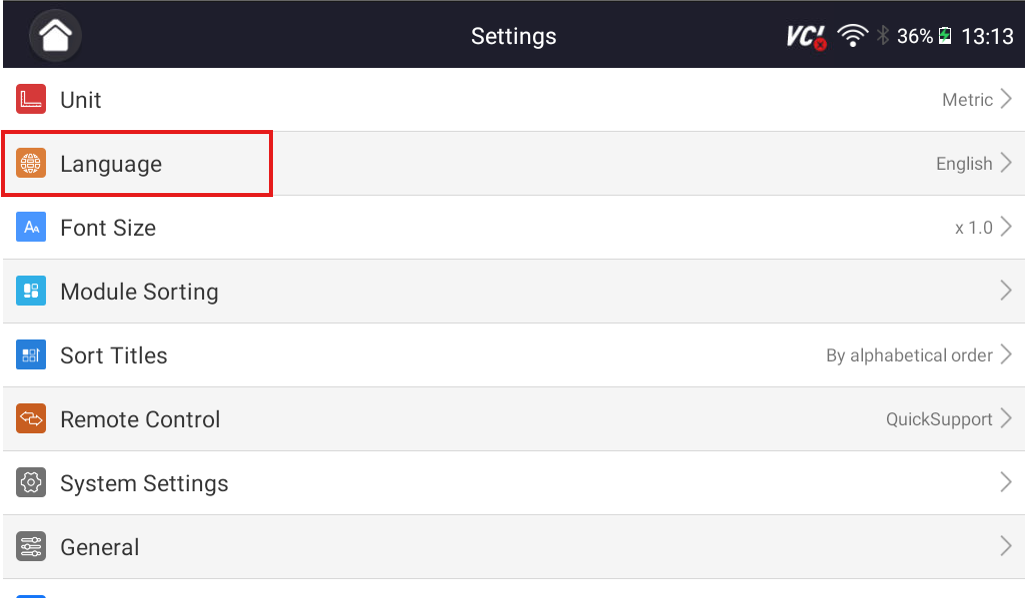
3. Choose your preferred language.

4. Select “Yes,” and the device will RESTART, and the selected language will be displayed.

How to change Android’s default language
The following steps show you how to change the default language on the Android operating system running the YOUCANIC scanner. This does not change the YOUCANIC scanner display language; it only changes the Android system language.
1. On the home screen, select “Settings”.

2. Select “System Settings.

3. Select “System (Languages, time, reset).”

4. Select “Languages & input”.

5. Select “Languages”.

6. Select “Add a language” and pick your preferred language.

If you experience any problems while changing the language on your YOUCANIC UCAN-II-B scanner, please contact our Support Team for assistance. We are here to help ensure your device is running at its best. For more help with your scanner, don’t forget to take a look at our other scanner guides!