Scanner Guide: How to Replace Files on a YOUCANIC Scanner
Has vital information disappeared from your scanner? Is the software not working the way it should? You might need to replace files on your scanner!
This guide will walk you through this process to get your scanner working properly again! Are you more of a visual learner? Follow along with our video guide below!


🔧 Stop paying the dealer for every warning light
Get dealer level diagnostics at home with the YOUCANIC Full System Scanner.
- ✔ Works with all makes and models, including most luxury brands
- ✔ Topology map view shows all vehicle modules on one screen for faster diagnostics
- ✔ Bi directional controls to test fans, pumps, actuators and more so you do not have to guess
- ✔ Special resets and calibrations such as ABS bleed, EPB service, battery registration and more
- ✔ Free lifetime updates with no recurring fees
⚠️NOTE: You will only ever need to replace a file on your scanner after a software update gone wrong, or if the software on your scanner stops working. If you are experiencing technical issues with your scanner, contact YOUCANIC support for troubleshooting assistance.
Step-by-step Guide
- The folder you receive from YOUCANIC’s software development team will likely be zipped. Once you download the file, you will need to unzip or extract this file.
- Move your unzipped file from your downloads tab to the USB drive, if you are using one, plugged into your computer.
- Right-click the USB drive in your file app, then click the Eject button.
- Connect your USB drive to your Scanner.
- You can also connect your scanner directly to your computer with a USB-A to USB-A cable.
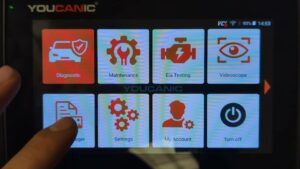
- On the second page of the homescreen, select Auxiliary Tools, then File Browser.

- On the following screen, you should see two file options: Internal Storage and USB. If you do not see the USB option, exit the app, remove the USB from your scanner, and reset the scanner by pressing and holding the power button until the Restart option appears on the screen. Restart your scanner and try again.
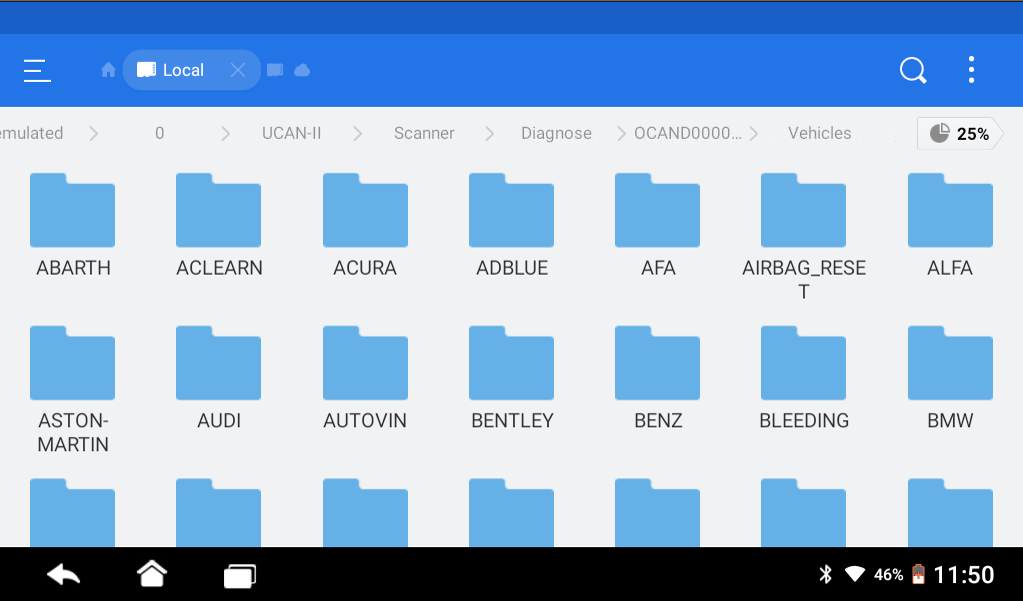
- Select Internal Storage, then on the following screen select the file named UCAN-II, then select Scanner.

- Select the file named Diagnose, select the serial number file on the next screen, then select Vehicles.
- Find the file with the name of the vehicle that needs an updated file, for this demo, that is the file titled Benz.
- The location of files you need to replace may vary. Either they will be located in the first folder, which is titled the recent software version, or in the folder titled RES. You will just need to poke around a bit to find the files that need to be replaced.
- Once you have found the files that need to be replaced, rename them rather than delete them. That way, you will have the original files for future reference.
- Press and hold on the file that you need to rename, and press the rename button at the bottom of the screen. Rename the file, and press OK.
- Press the small home button at the top left of your screen, and select the USB option.

- Press and hold on the replacement files, and copy them.
- Press the small home button on the top left of the screen, and go back into Internal Storage.
- Select UCAN-II > Scanner > Diagnose > Serial Number > Vehicles >Your Vehicle Make > and paste the replacement files in the right folder.
- Repeat the steps above if you need to move files to different folders.
- Once you have moved all files over, exit to the home page, and restart your scanner by pressing and holding the power button until the Restart option appears.

- After restarting your scanner, go to the Updates tab and run all available software updates.




If you are still experiencing issues with your scanner after replacing files, reach back out to YOUCANIC Support for further assistance.