
How to Perform Injector Coding with a YOUCANIC Scanner
Have you recently replaced the fuel injectors in your vehicle? Before you can officially get your car back up and running, you will need to perform injector coding so that your car recognizes them.
Fuel injectors are a vital part of every vehicle. Without them, your car simply won’t run. If you are experiencing engine misfires, low gas mileage, or a rough idle, it might be time to replace them. Before blindly swapping parts, we recommend using a full-system scanner to read fault codes and live engine data to confirm that your fuel injectors are bad, not just a faulty Oxygen sensor. Are you more of a visual learner? Follow along with our video guide below!

On every vehicle, you must perform fuel injector coding whenever you replace a fuel injector. While this may sound like a very complicated task, new injectors can be coded very easily with a YOUCANIC scanner! Are you more of a visual learner? Follow along with our video guide below!

🔧 Stop paying the dealer for every warning light
Get dealer level diagnostics at home with the YOUCANIC Full System Scanner.
- ✔ Works with all makes and models, including most luxury brands
- ✔ Topology map view shows all vehicle modules on one screen for faster diagnostics
- ✔ Bi directional controls to test fans, pumps, actuators and more so you do not have to guess
- ✔ Special resets and calibrations such as ABS bleed, EPB service, battery registration and more
- ✔ Free lifetime updates with no recurring fees
Step-by-Step Guide
- Connect your scanner to your car, and make sure the scanner and VCI adapter are paired. If you don’t know where the OBD-II port is in your car, try looking it up in your vehicle’s user manual or online.

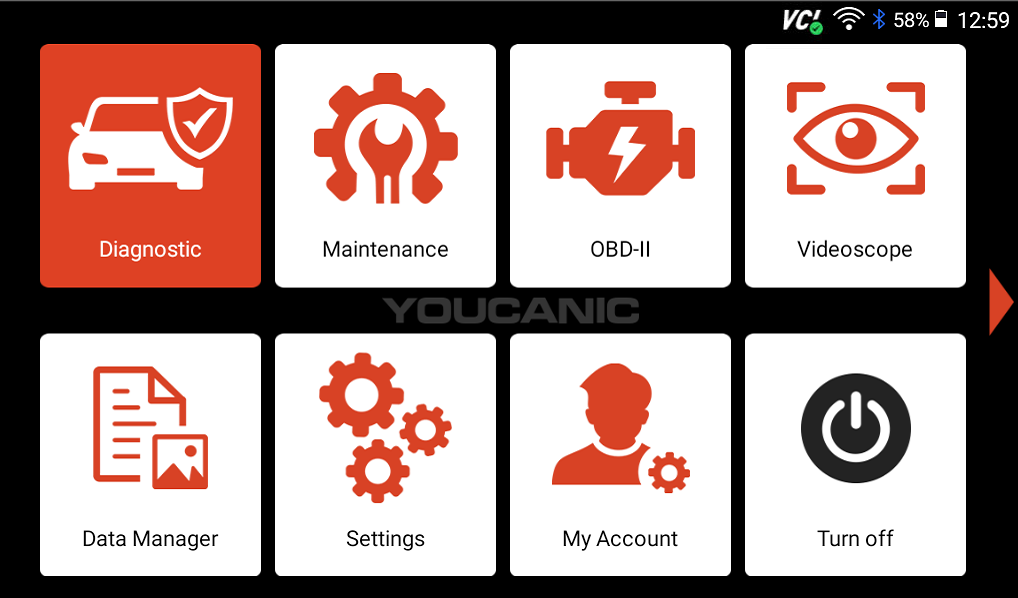
- Select Diagnostic from the home page of your scanner.

- On the following page, find your vehicle model from the list, or select the VIN icon at the top of the screen.

- Once all information has been entered correctly, select Diagnosis.

- Select Control Modules and then Engine.

- On the following screens, select Engine Control and then Special Functions.

- Look for the Control Unit Adaptations option, and on the following screen, select Adjustment of injector injection quantities.
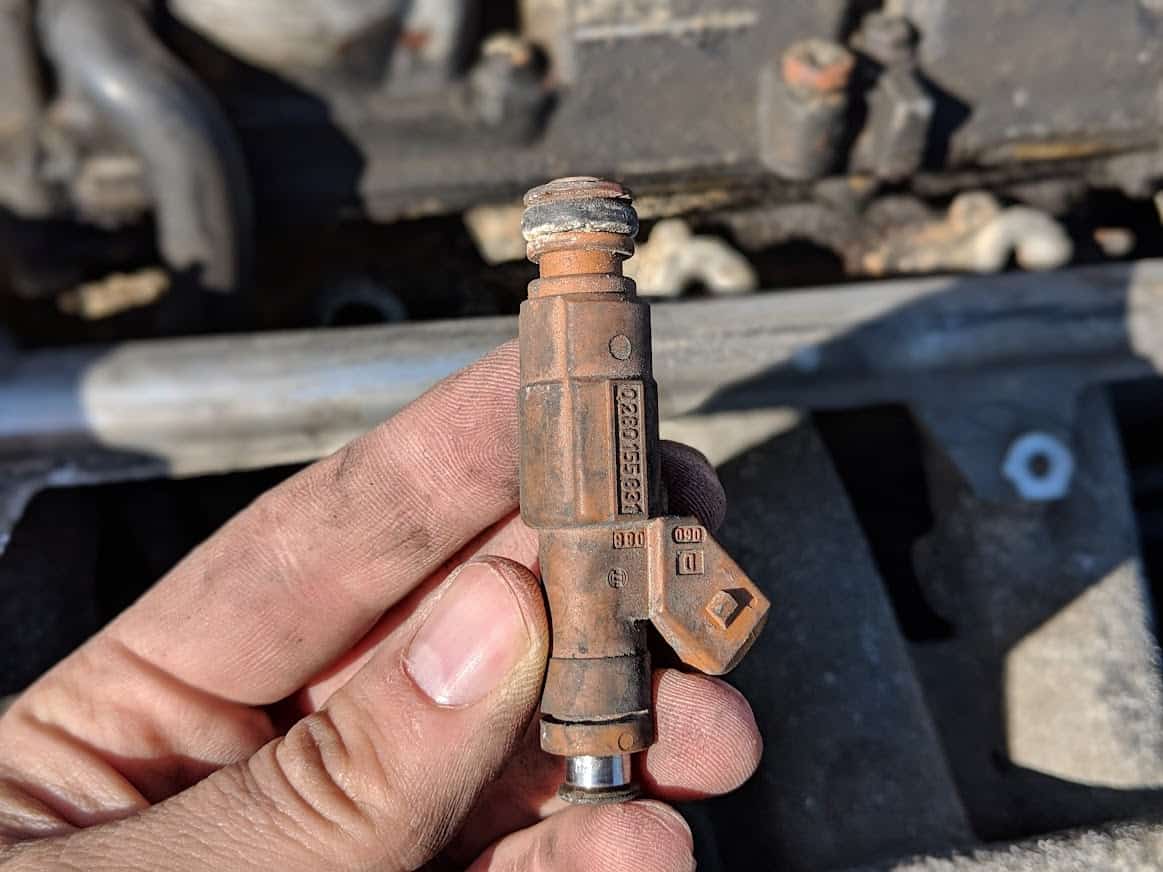
- Your scanner will begin coding the new injectors. You will need to make a note of the serial number related to the injector that you replaced. You will need this code to properly perform injector coding on your scanner. You can find this code on the box that the new injector came in, or on the injector itself. If you are having a hard time finding the code on your injector, you can look it up online.

NOTE: The injector shown above is for a Chevrolet vehicle. The location of the injector code will vary by model. - Select the injector that you replaced, and type in the new seven-digit injector code.


NOTE: You can run this coding function with the engine on or off. However, if your scanner shows the error “function not supported” when running diagnostics with the engine on, turn the engine off, but keep your car’s ignition in position II. If you have a push-to-start vehicle, press the start button with your foot off the brake pedal.
To perform Injector coding through Maintenance
You can also code new injectors through the Maintenance function on your scanner.
- From the home screen, select Maintenance.
- Scroll down until you see the Injector option, and select your vehicle model from the list.

- From here, the steps should be similar to steps 5-7 above. Make sure you know which injectors you need to code, and have their seven-digit serial number written down somewhere!

Disclaimer: This guide may not apply to all vehicle makes and models. If you need to verify coverage for your particular vehicle, please contact YOUCANIC support or use our Compatibility Checker.

These are the parameters you need to use when checking compatibility on our website.


