Why Your Tesla Won’t Start: Top Causes and Solutions
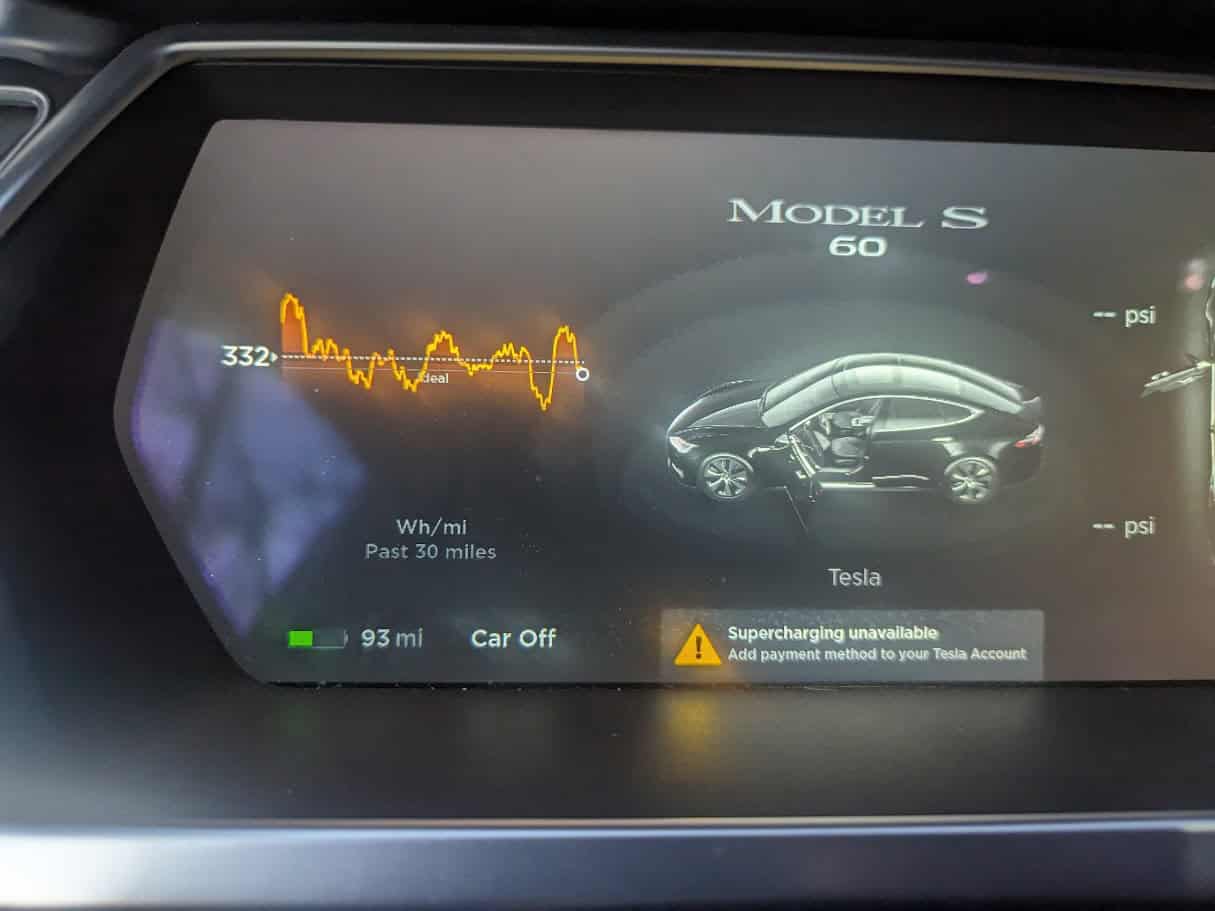
This article will help you when you encounter “Car Off” issues with your Tesla, the vehicle fails to power on or operate as expected. This article provides common causes and potential fixes to get your Tesla back on the road.
- Battery Power Low battery: This is the most likely cause. If possible, check the battery charge level in the Tesla app or try charging the car. Tesla has an auxiliary 12V battery on top of the big battery pack. If this battery fails or runs low, it can prevent your vehicle from turning on (EVs will require independent voltages so that they can still be charged even if the 12V fails).
- Software Glitches – Sometimes, the car’s software can freeze like a computer and cannot ‘wake up’ after turning it on. A reset or reboot of the system can remedy this.
- Pending Update: If the car indicates ‘Pending Update,’ the software hasn’t finished downloading. Allow the Tesla to finish installing the updates. Then, check if the car’s software is up to date.
- Key Fob/Phone Key Connectivity: Make sure your key fob or phone key is on you and that you are not experiencing interference. Sometimes, the car doesn’t connect with your key.
- Battery Replacement: The key fob battery could last up to one year under normal usage. If the battery becomes weak, it can prevent communication with the car. Therefore, you might have to replace the battery.
- Safety & Security Features Safety Lockout: In certain circumstances, such as when a breach has been detected or in the aftermath of a crash, the vehicle might become fully disabled for safety and security reasons.
Possible Fixes
- Soft reset: Push both scroll buttons on the steering wheel simultaneously until the screen shuts off and comes back on.
- Charge the Car: If the battery is low, attempt to charge your Tesla.
- Replace the 12 Volts Auxiliary Battery (If possible). Check the 12V auxiliary battery. It may need replacement.
- Replace the battery in the key fob. Then, place the key fob in the cup holders, press the brakes, and try to drive.
- Disconnect the high-voltage battery and 12-volt battery for 5 minutes, then reconnect.
- Change Wheel Configuration: If the screen on your Tesla is responsive, go to wheel settings and change the wheel configuration. This reboots the central gateway computer and often wakes your Tesla to drive. Please change the wheel configuration to the correct wheel size once the vehicle has woken up or the Car Off message has been reset. Otherwise, the speed shown on the vehicle may be off.
Troubleshooting
If your Tesla is still under warranty, you could contact Tesla Support. If none of the above steps work, call Tesla support or roadside assistance, and they will diagnose and troubleshoot your vehicle. If your Tesla is out of warranty or has a void warranty, you can troubleshoot the issue yourself with an excellent diagnostic scanner. In the following steps, we will use the YOUCANIC scanner to diagnose a Tesla that shows Car Off and won’t drive.
- Connect the YOUCANIC scanner to the OBD-II port. Model X, S, and Y typically have OBD-II ports, but Model 3 does not.
- Turn on the scanner and go to Diagnostic.
- Scroll down to Select Tesla.
- Select the model.
- Go to Quick Scan to perform a complete vehicle diagnosis.
- Focus on and fix the fault codes that are showing on the scanner. This will usually address the issue of why your car won’t start.