VoltCheck Pro How to Install Print Drivers
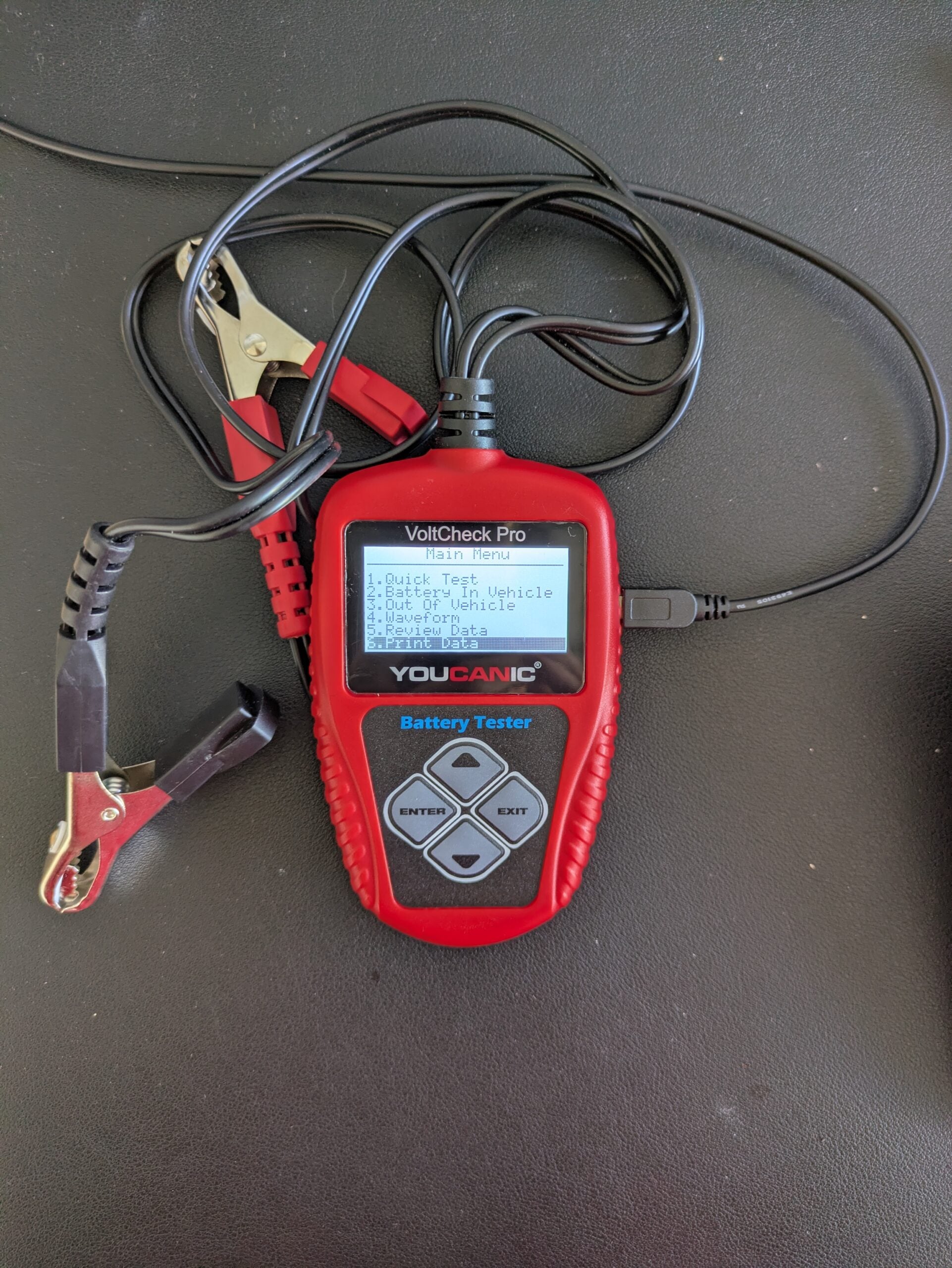
Have you ever wanted to print a report from your YOUCANIC VoltCheck Pro battery tester? While your User’s Manual instructs you to install print drivers from the CD included with your battery tester, that is no longer the case. The steps below will help you download and install the drivers you need to print from your battery tester.
Step-By-Step Guide
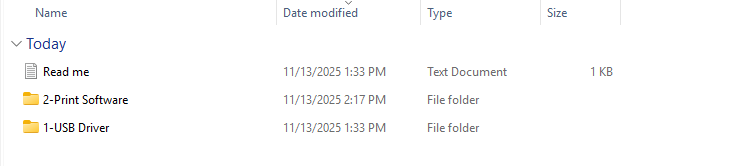
- Download the file VoltCheck Pro Drivers V1 using the link. This is a zipped file that will need to be extracted before you can properly access the files inside.
- First, you will have to install the USB Drivers. Select the folder labeled 1-USB Driver, and install the driver on the following screen.

- Next, select the Print Software folder, and download the software titled PrintCOM_V1.1.
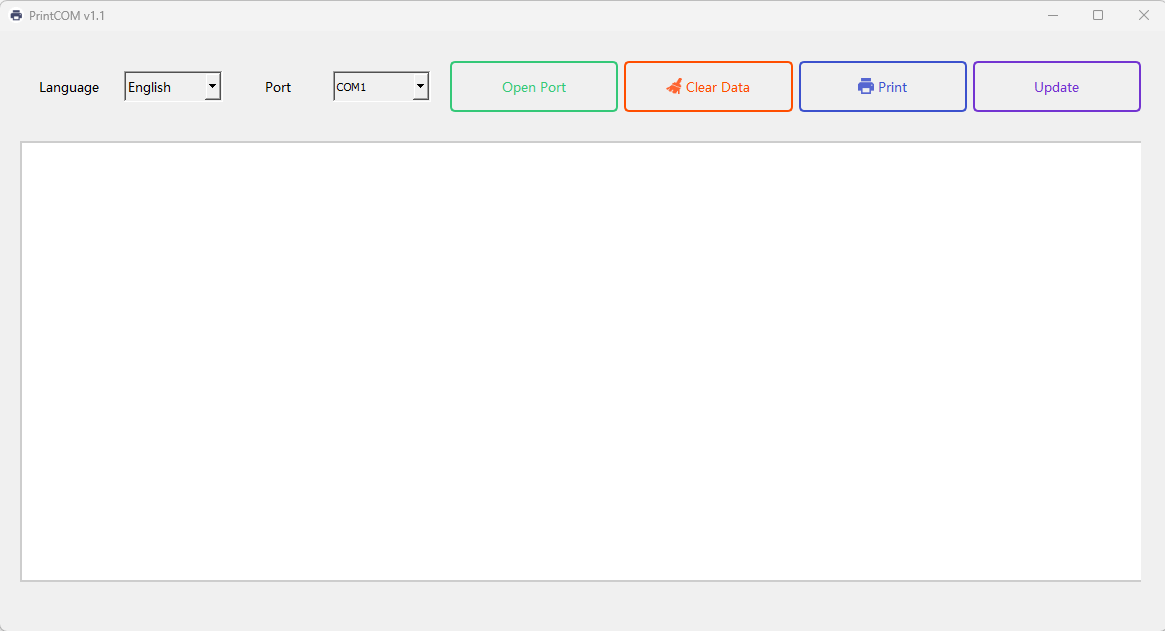
- Open the print software and plug your battery tester into your computer using the included cable.

- To change the display language to ENGLISH, select the second option in the dropdown menu on the left.
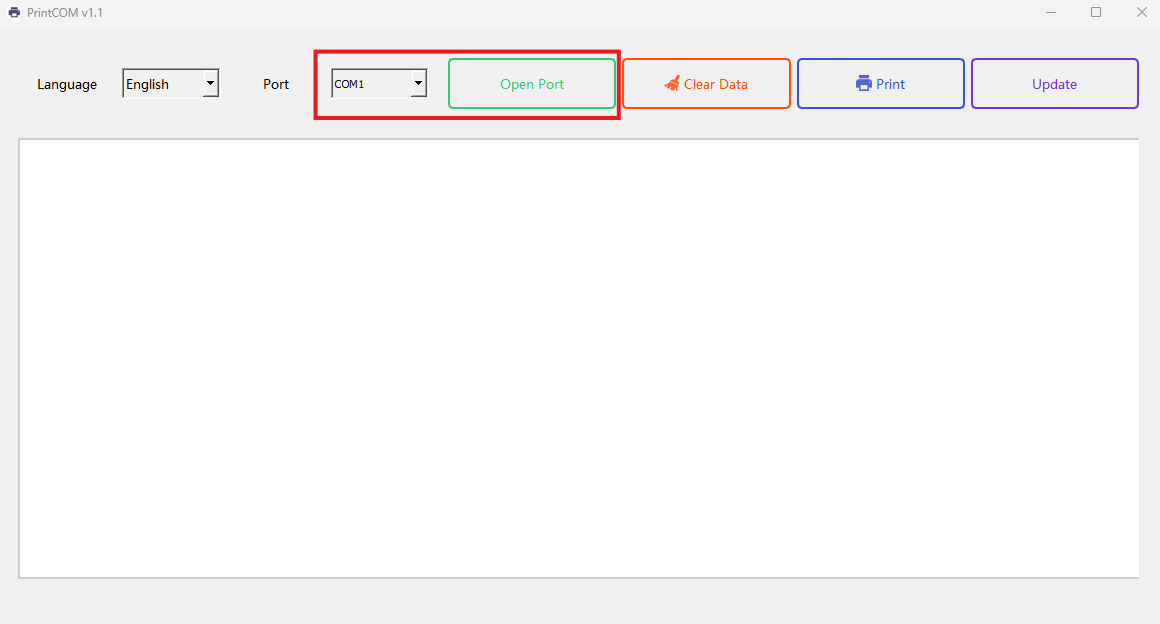
- Find the port you have plugged your battery tester into, and select Open Port.

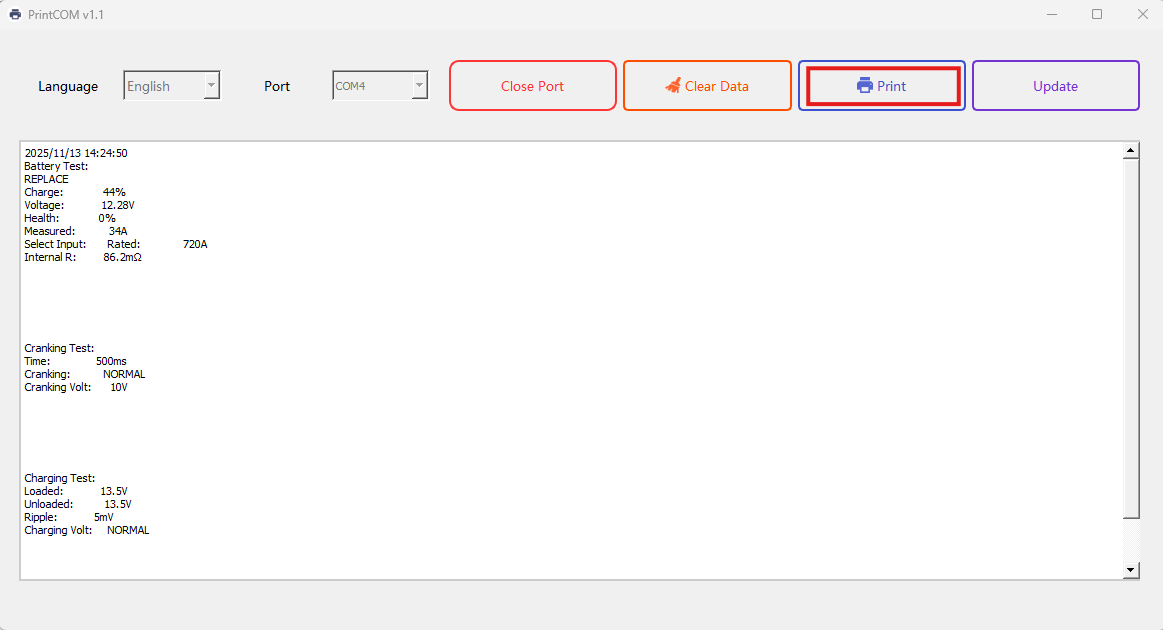
- On your Battery tester, scroll to the Print Data option, then press the Enter key on the keypad. The print software on your computer will generate a report.

- Press the Print button on your computer.
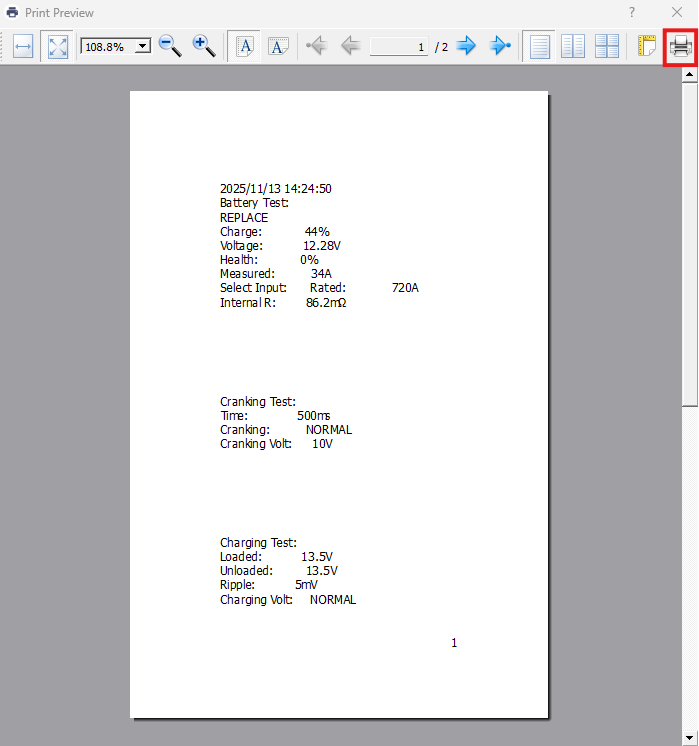
- The print software will generate a report. Press the printer icon and select your printer.

If you run into any problems during this process, feel free to reach out to YOUCANIC support for software help.