How to Record Live Data on a YOUCANIC UCAN-II-B Scanner
This step-by-step guide will show you how to record and review live diagnostic data from your vehicle using the YOUCANIC Scanner. Recording live data is essential for diagnosing problems and analyzing vehicle performance over time.
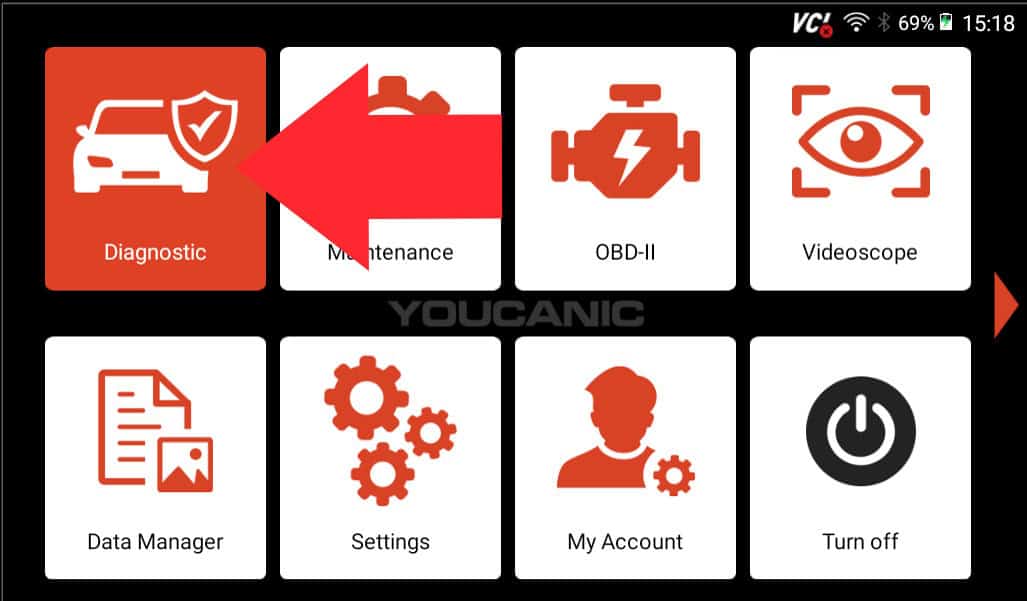
- From the home screen, locate and tap the “Diagnostic” icon. This is your starting point for all diagnostic functions.

When the VCI adapter is connected to your vehicle’s OBD-II port, the scanner will attempt to automatically retrieve your Vehicle Identification Number (VIN). If automatic detection fails, you can manually enter your vehicle information using the on-screen prompts.

- Select “Control Modules” from the main diagnostic screen to access individual vehicle systems.

- Select the system you wish to diagnose from the available modules. This example will focus on the Automatic Transmission (AT) module.

- Select “Continuously Variable Transmission” within the AT module to access transmission-specific diagnostic options.

- Select “Live Data” from the available options to view real-time transmission parameters.

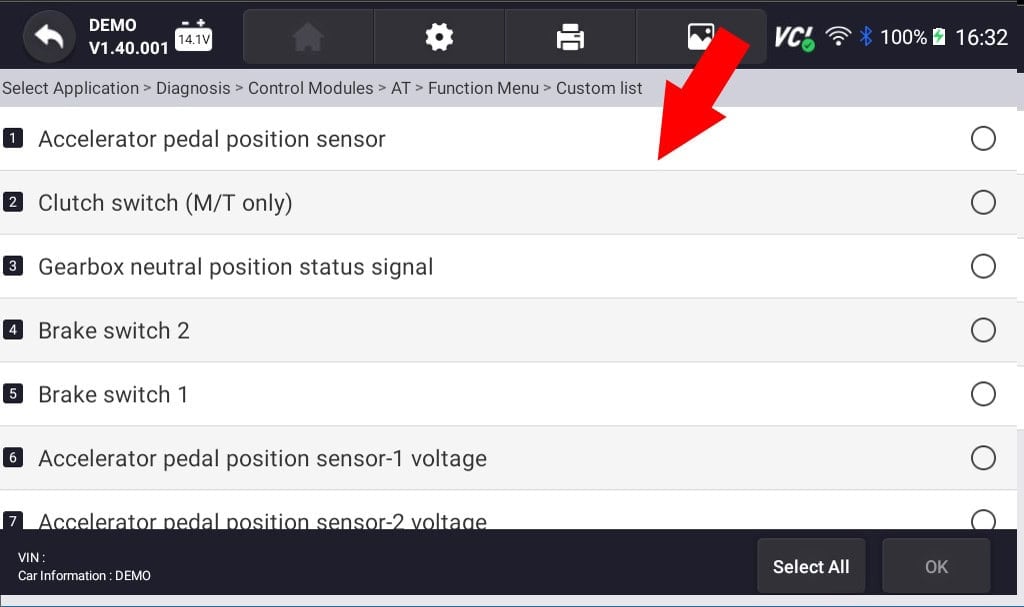
- A list of available parameters will appear. Select the specific data points you want to monitor and record. Confirm your selection by tapping “OK” in the bottom right corner.
- To begin recording, locate and tap the “Record” button in the bottom right corner of the screen. This will start capturing all selected parameters.

- Once recording begins, you’ll notice a recording indicator tab in the corner of the screen, confirming that data capture is in progress. You can monitor your selected parameters in real time while the scanner records all values.





How to Replay the Recorded Data
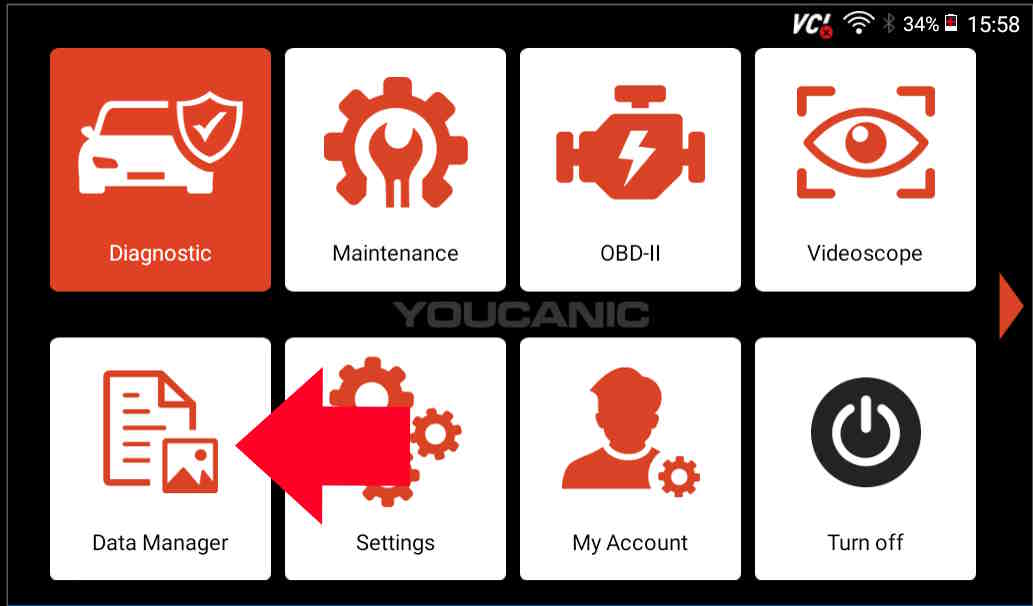
- Go back to the home screen and select “Data Manager.”

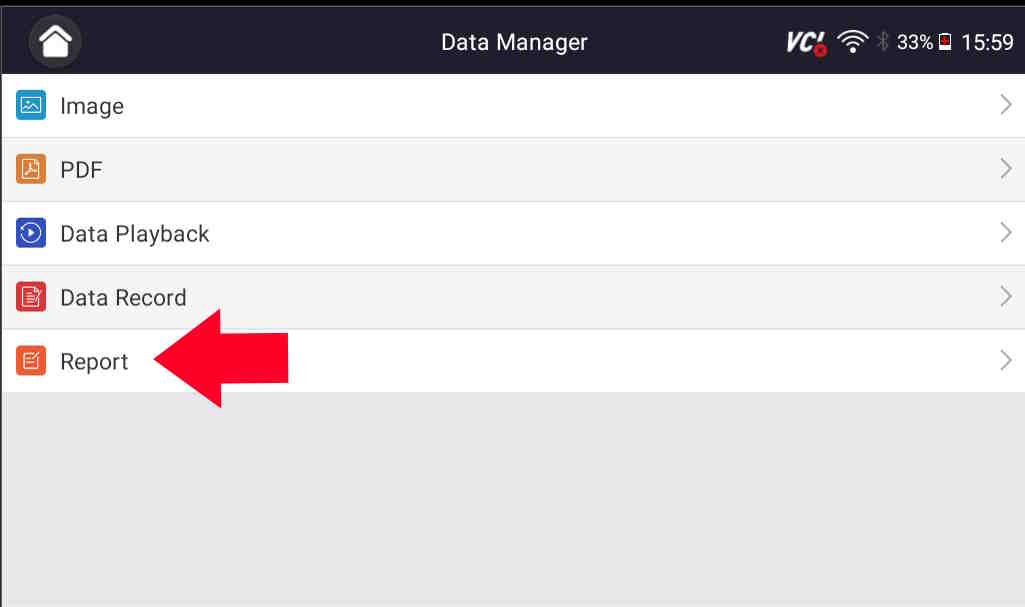
- Select “Report.”
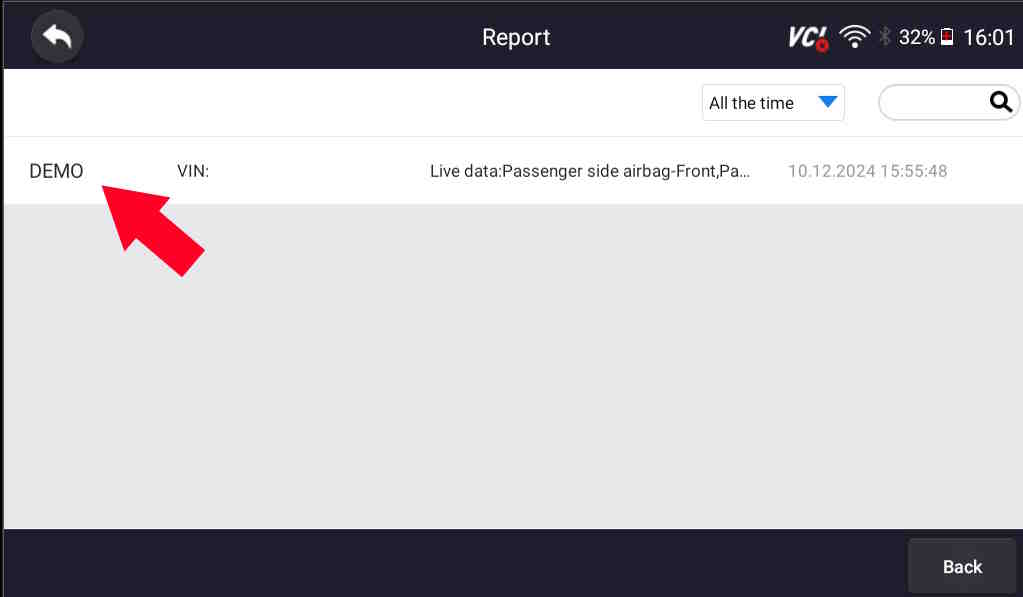
- The scanner will show the recorded live data, which you can select and replay on the scanner.
Where can you find the completed live data recording?
The following steps will show you where data files are stored if you want to move them to a USB flash drive. Recordings can only be played back on the YOUCANIC scanner. The file is stored as a DATA file, not a movie file; therefore, you can not simply copy it to a flash drive and replay it on another device.
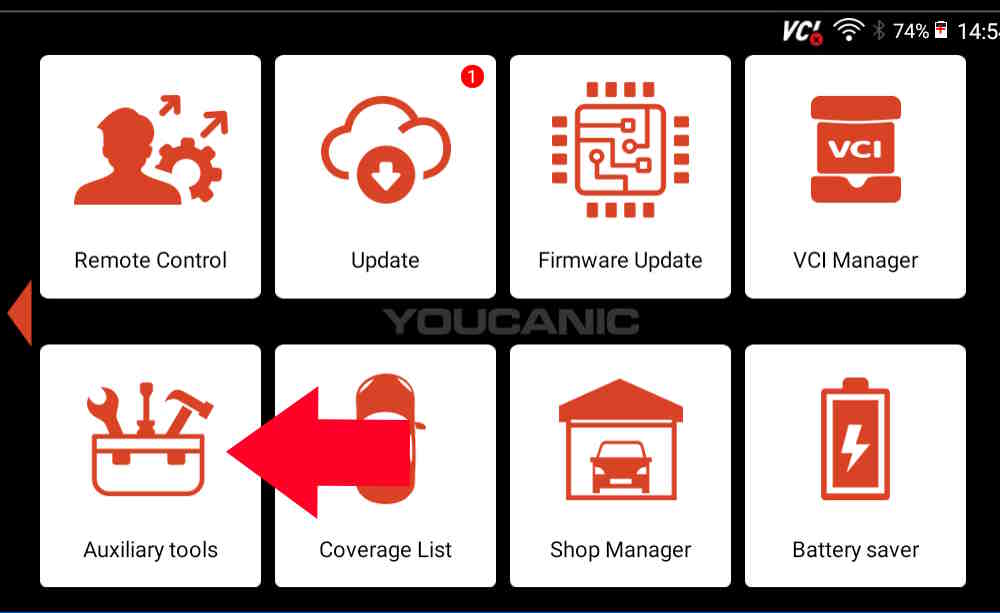
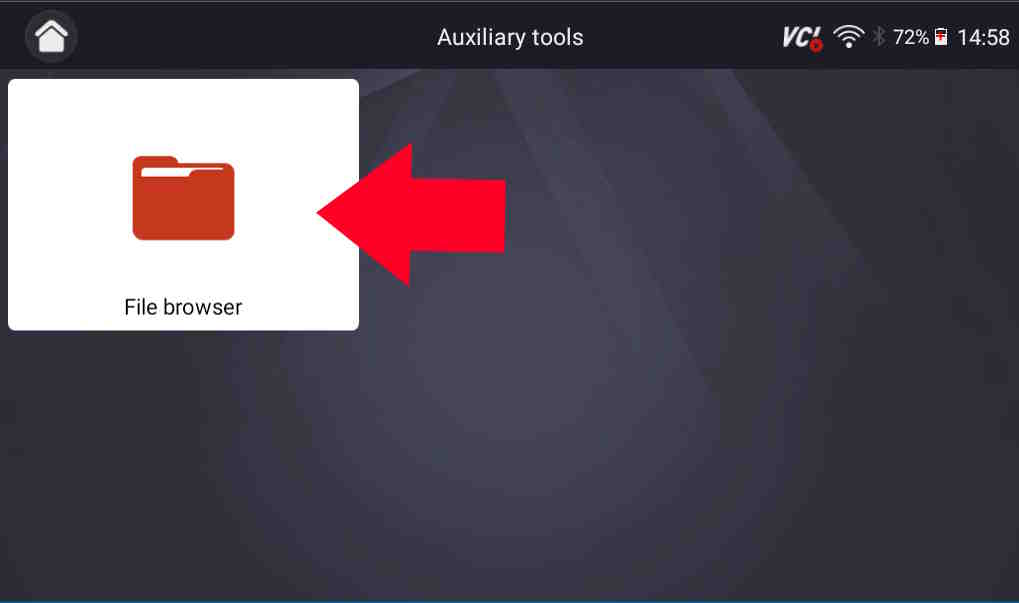
- Select “Auxiliary tools,” located on the second page of the home screen.

- Select “File browser.”
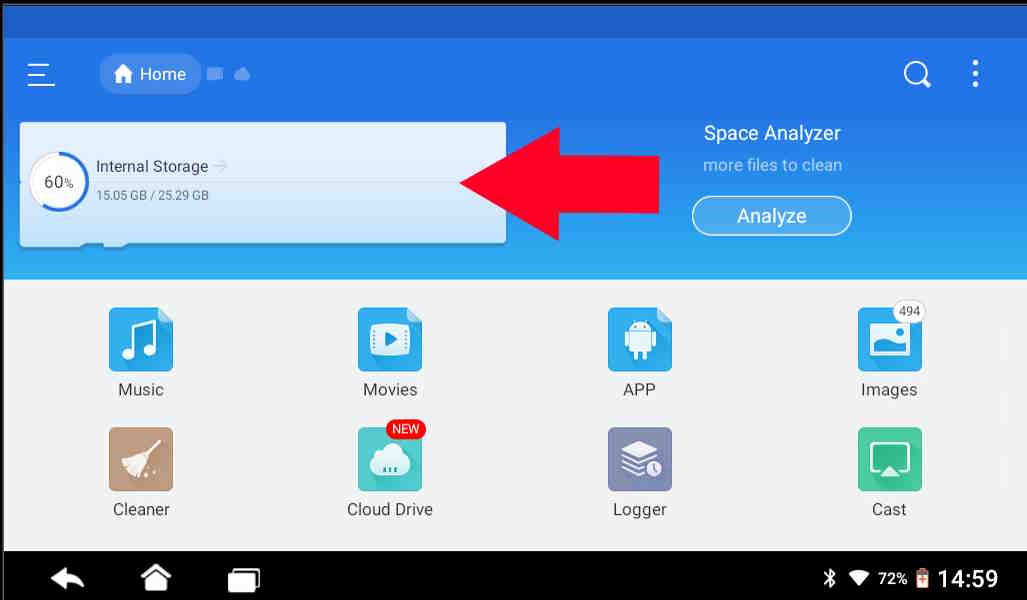
- Select “Internal Storage.” This page may take a few seconds to load.
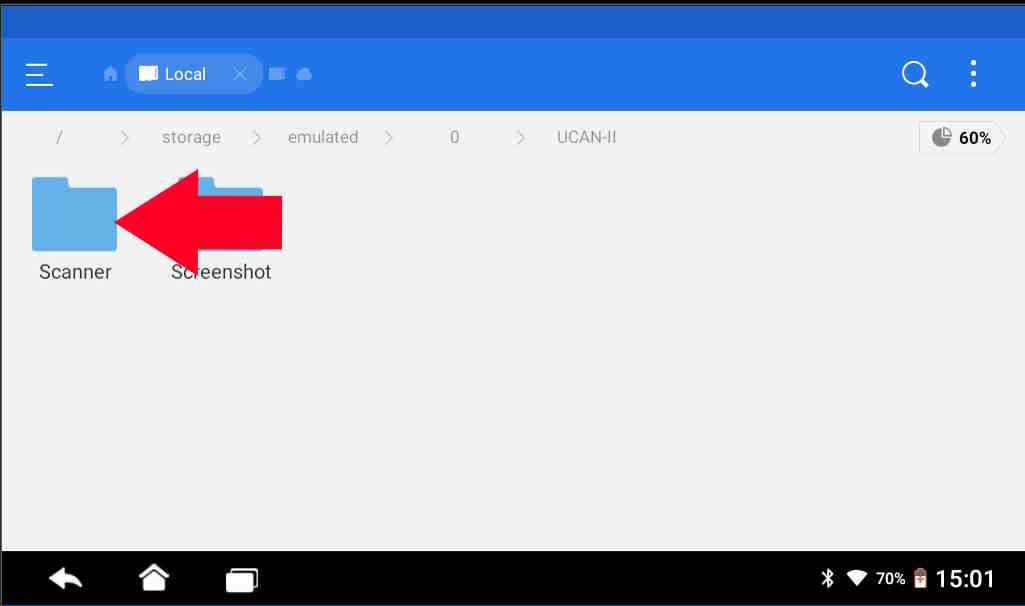
- Select the file labeled “UCAN-II.”
- Choose the “Scanner” folder; the system will be directed to all saved live data recordings.

Pro Tips

🔧 Stop paying the dealer for every warning light
Get dealer level diagnostics at home with the YOUCANIC Full System Scanner.
- ✔ Works with all makes and models, including most luxury brands
- ✔ Topology map view shows all vehicle modules on one screen for faster diagnostics
- ✔ Bi directional controls to test fans, pumps, actuators and more so you do not have to guess
- ✔ Special resets and calibrations such as ABS bleed, EPB service, battery registration and more
- ✔ Free lifetime updates with no recurring fees
- For best results, ensure your vehicle’s engine is running before starting the recording.
- Record data during specific driving conditions that you notice more issues occurring.
- The scanner automatically saves recordings for later review and analysis.
- Consider recording baseline data when your vehicle is operating normally for comparison purposes.
If you encounter any problems recording data on your YOUCANIC UCAN-II-B scanner, please contact our Support Team for assistance. We are here to help ensure your device is running at its best.