

How to use the YOUCANIC AI Mechanic | Step-By-Step Guide
Are you feeling stuck on a repair? Has a fault code got you stumped? Your YOUCANIC scanner has an AI mechanic that can help you get through tough repairs!

Step-By-Step Guide
- Connect your VCI to your car’s OBD-II port under the driver’s side footwell.

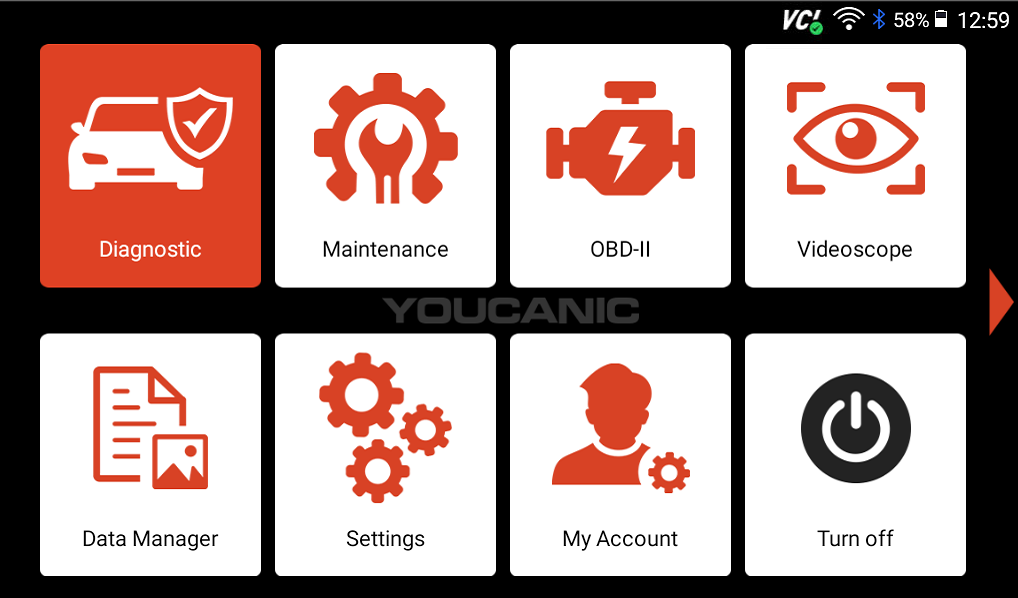
- From the homescreen of your scanner, select Diagnostic, then select your vehicle make.

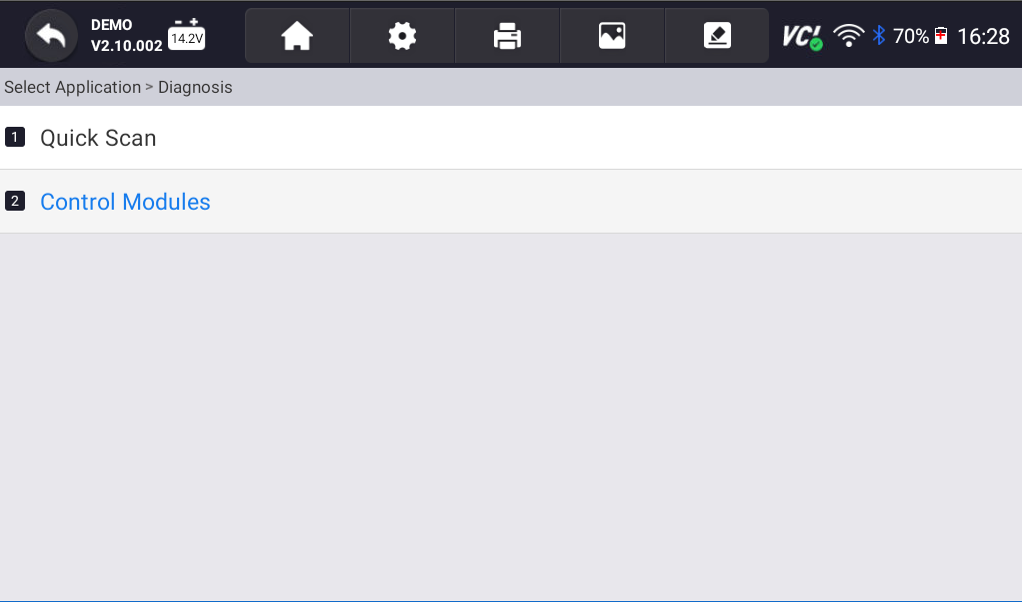
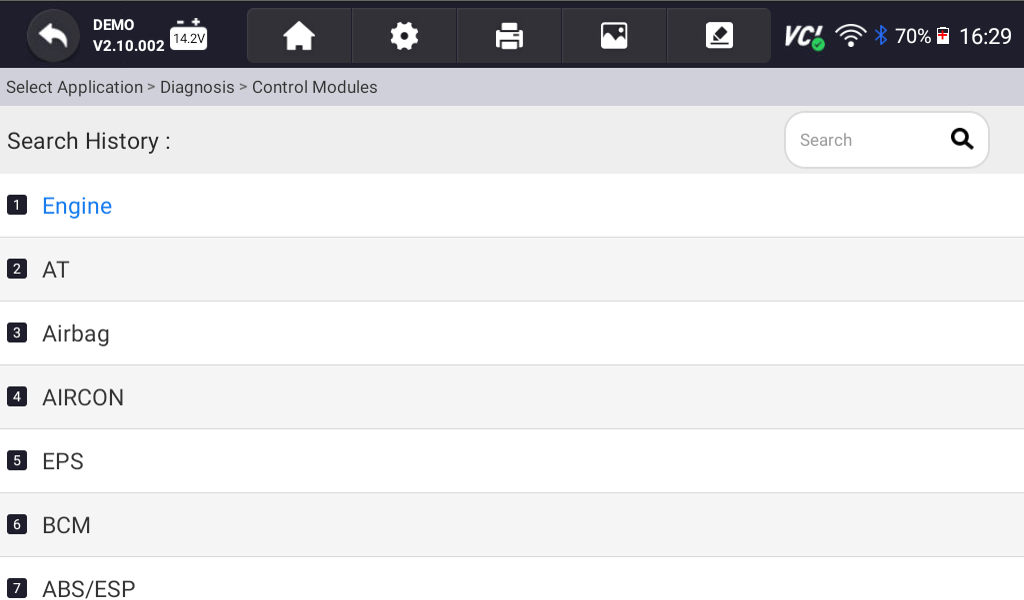
- On the following screen, select Diagnosis, then select Control Modules.

- Select the module you would like to scan, and press Read Codes.

- Tap on the magnifying glass on the right-hand side of the screen to activate your scanner’s AI Mechanic.NOTE: You can also use these steps to access the internet on your scanner if you ever need to look something up.
- A browser window will open. It may take a minute or two for the page to load. This page will give you a breakdown of the fault code, explaining what it means and possible fixes for the issue.


 NOTE: You can also use these steps to access the internet on your scanner if you ever need to look something up.
Some Things to Note:
This feature isn’t able to differentiate between current/active and stored/history codes. It can only give you a breakdown of what that code means and possible fixes. Current codes indicate an issue causing problems in your car. Stored codes are fault codes that were previously an issue but are no longer causing problems in your car.

🔧 Stop paying the dealer for every warning light
Get dealer level diagnostics at home with the YOUCANIC Full System Scanner.
- ✔ Works with all makes and models, including most luxury brands
- ✔ Topology map view shows all vehicle modules on one screen for faster diagnostics
- ✔ Bi directional controls to test fans, pumps, actuators and more so you do not have to guess
- ✔ Special resets and calibrations such as ABS bleed, EPB service, battery registration and more
- ✔ Free lifetime updates with no recurring fees
The YOUCANIC AI Mechanic is only available through individual control modules. This feature is not available on the Quick Scan menu.
To view this page later
In a future update, YOUCANIC’s development team is planning on adding a shortcut that will make it easier to access the internet. If you need to access the internet or look back at the AI Mechanic’s fault code explanation with the scanner disconnected from your car, these are the steps you will need to follow:
- From the homepage, go to Settings.
- Scroll down and select System Settings.

- Tap on the square at the bottom of the screen. This will open all currently running tabs. NOTE: If your scanner is running slowly, this can be a good way to close unused apps and help your scanner run faster.
- Select the Internet browser option.
- Now, you should have access to your AI Mechanic and will be able to look something up if needed.
NOTE: This only works if the app is still running. If the app has been closed, you will not be able to access the AI Mechanic without being connected to the car.


Need some extra help? Contact YOUCANIC’s support team for further troubleshooting and scanner help! Want to talk to a real mechanic? Sign up for ourDIY Assist tier and get real answers from real mechanics.


