How to Connect your YOCUANIC Scanner to a Hotspot
Is your garage too far from your house? Are you having trouble getting your YOUCANIC scanner to connect to the internet? Connect your scanner to your smartphone’s hotspot!
For regular use, your scanner does not need to be connected to the internet. It can run scans and special functions completely offline! If you ever need to upload fault data for our support team to check, email a report to yourself, or consult your scanner’s AI mechanic, you will need a stable internet connection. Are you more of a visual learner? Check out our video guide below:

Step-by-Step Guide
- Go to Settings on your phone.
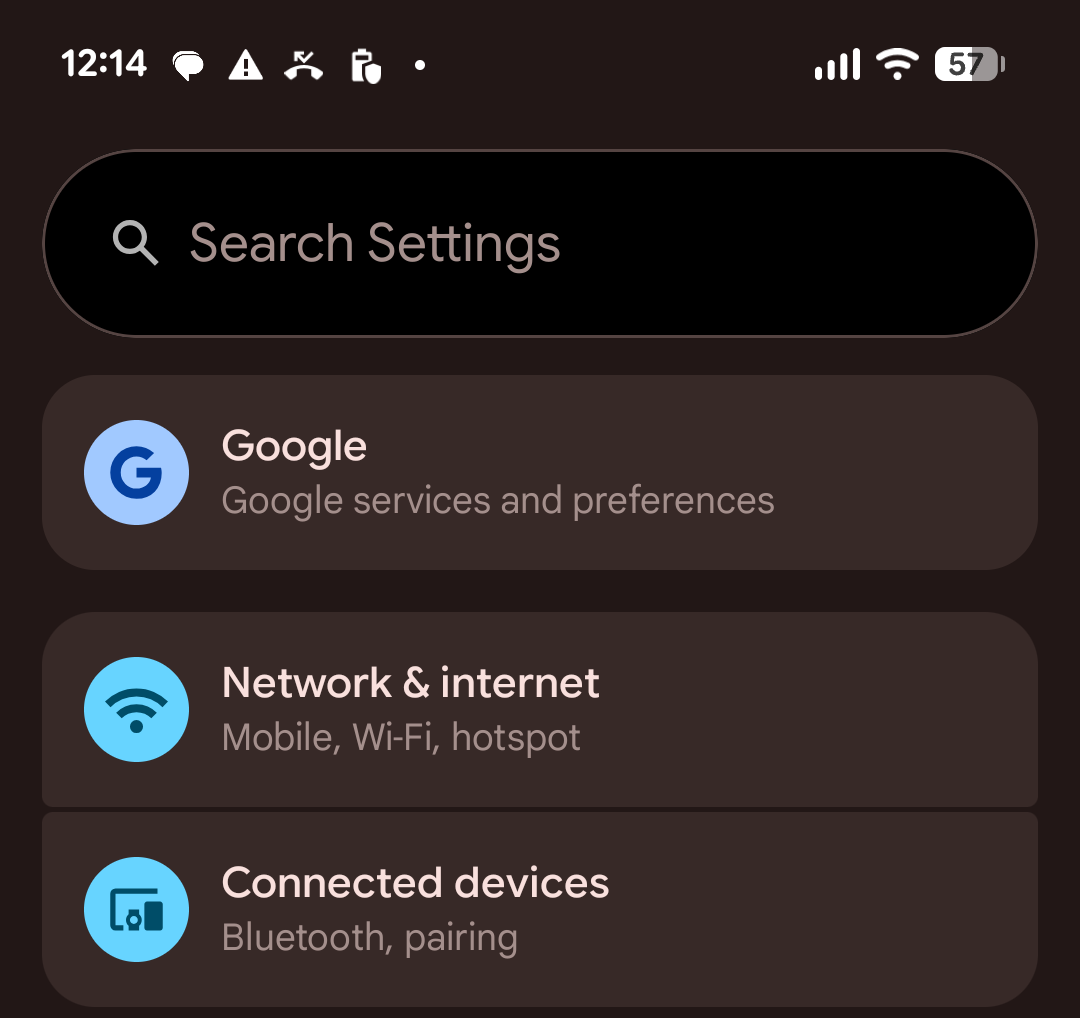
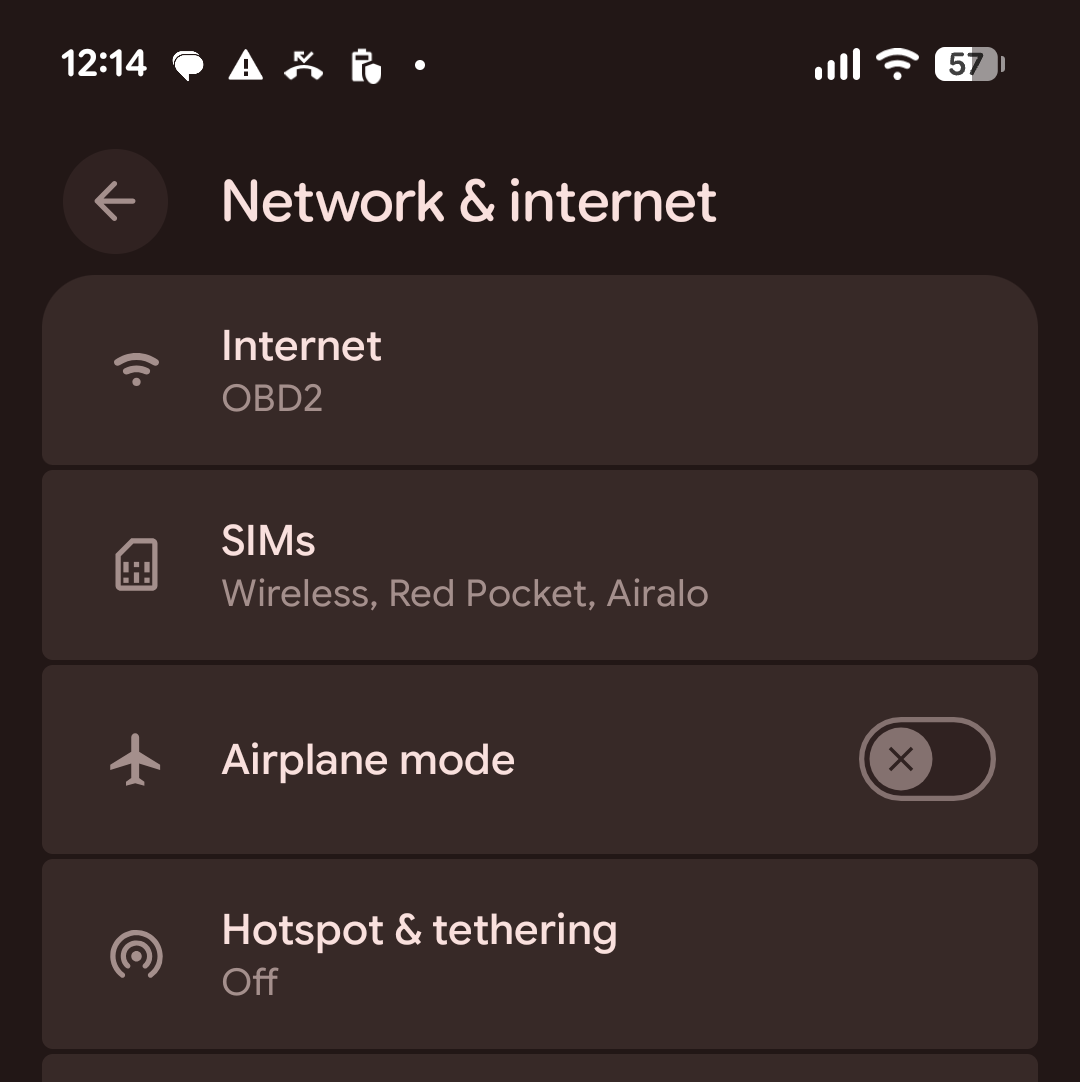
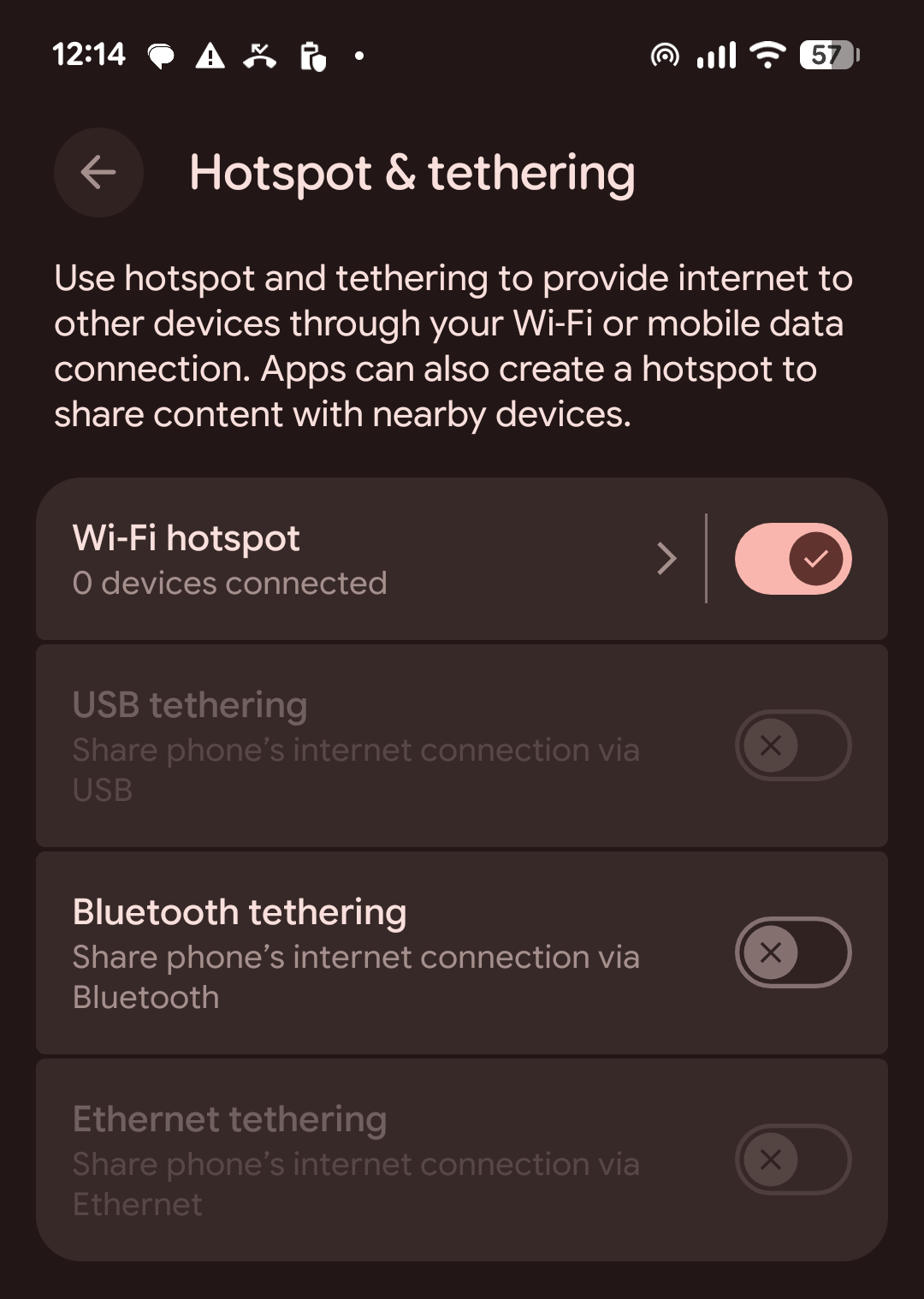
- Select Network & Internet, then on the following screen, tap on Hotspot & Tethering.


- Turn on your Wifi Hotspot.

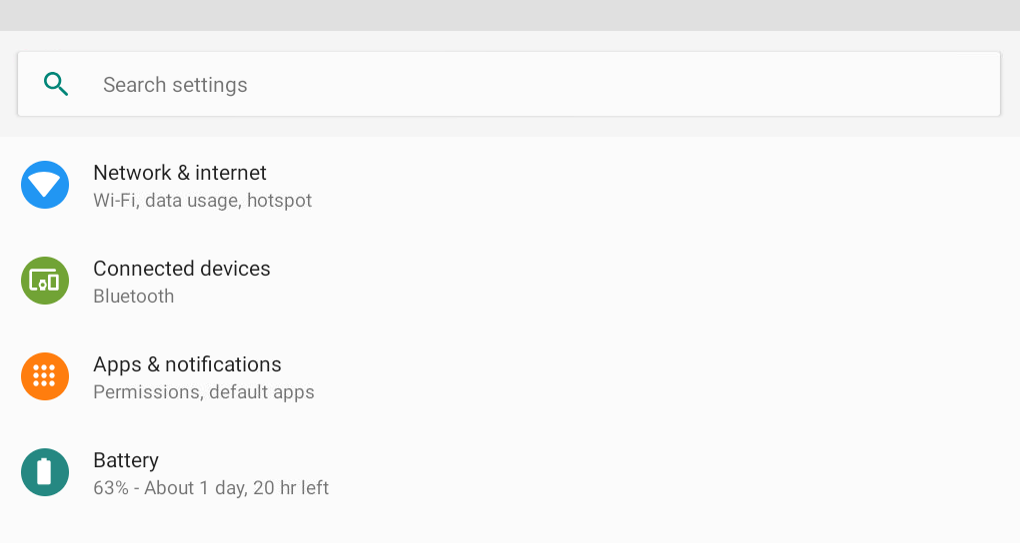
- On your scanner, go to Settings and select System Settings.

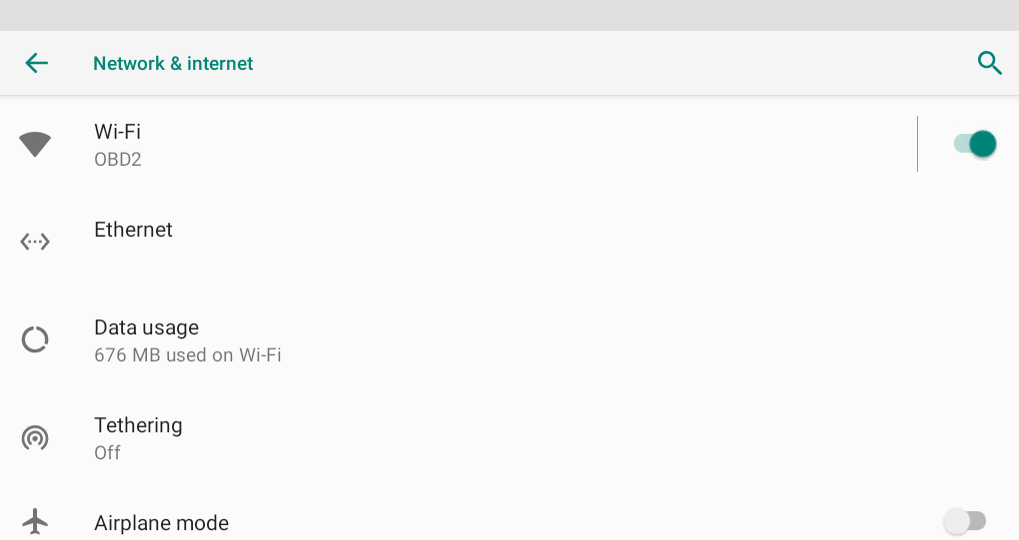
- Tap on Network & Internet.

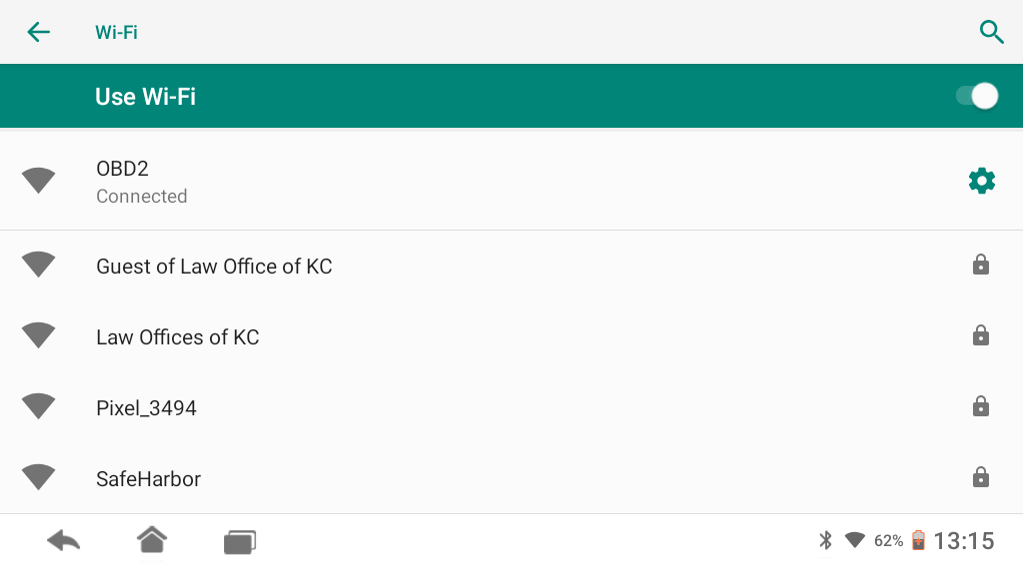
- Select Wi-Fi.

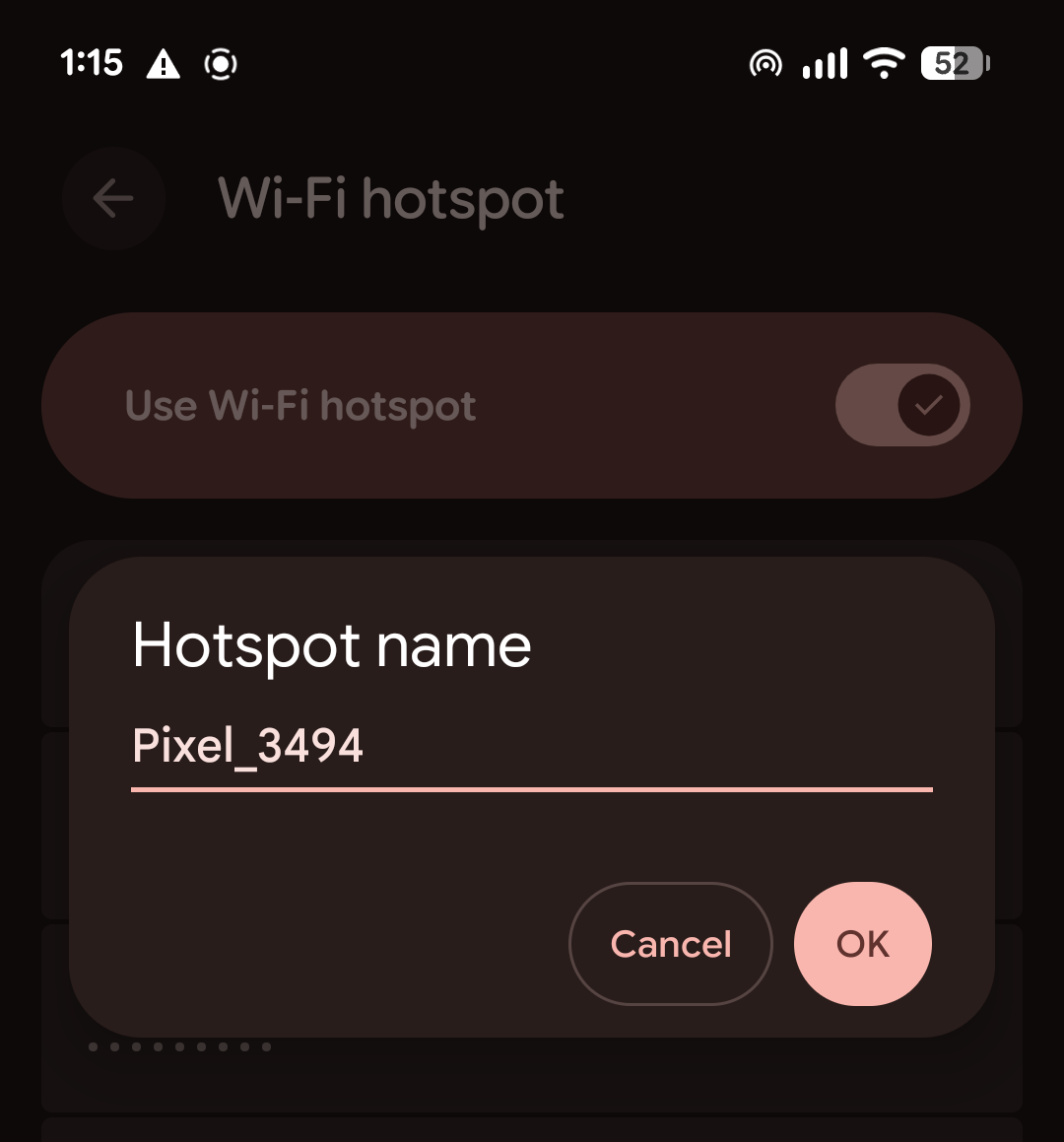
- Find your phone’s hotspot on the list and enter the password on your phone.



NOTE: The Bluetooth hotspot feature is not supported on the YOUCANIC Scanner. While you might be able to connect your scanner to your phone Via Bluetooth, it will not stay connected.

🔧 Stop paying the dealer for every warning light
Get dealer level diagnostics at home with the YOUCANIC Full System Scanner.
- ✔ Works with all makes and models, including most luxury brands
- ✔ Topology map view shows all vehicle modules on one screen for faster diagnostics
- ✔ Bi directional controls to test fans, pumps, actuators and more so you do not have to guess
- ✔ Special resets and calibrations such as ABS bleed, EPB service, battery registration and more
- ✔ Free lifetime updates with no recurring fees
Need some extra help? Contact YOUCANIC Support at support@youcanic.com. We are always more than happy to help!