Scanner Guide: How to Check if your OBD-II Port is Working Using a YOUCANIC Scanner
Have you been experiencing communication issues between your scanner and your car? Maybe the VCI is connecting, but you can’t scan anything? While the issue could be with your VCI, you may also be experiencing problems with your car’s OBD-II port.
You can check connection points on your OBD-II port using your scanner! This article will walk you through how to check this port, but if you are more of a visual learner, you can also follow along with our video guide below!

DISCLAIMER: The steps in this guide will only work if you have the latest version of our VCI adapter, which comes equipped with a small flashlight.

🔧 Stop paying the dealer for every warning light
Get dealer level diagnostics at home with the YOUCANIC Full System Scanner.
- ✔ Works with all makes and models, including most luxury brands
- ✔ Topology map view shows all vehicle modules on one screen for faster diagnostics
- ✔ Bi directional controls to test fans, pumps, actuators and more so you do not have to guess
- ✔ Special resets and calibrations such as ABS bleed, EPB service, battery registration and more
- ✔ Free lifetime updates with no recurring fees

While these adapters look similar, they feature different hardware. The VCI on the left cannot check the voltage at your OBD-II port, but the VCI on the right can.
Step-by-step Guide
- Connect your VCI to the OBD-II port in your car. If you aren’t sure where it is, look it up in your car’s user manual, or try to find it online.

- On your scanner, go to the second page of the homescreen and select Auxiliary Tools.

- On the following screen, select the Pin Detection option.
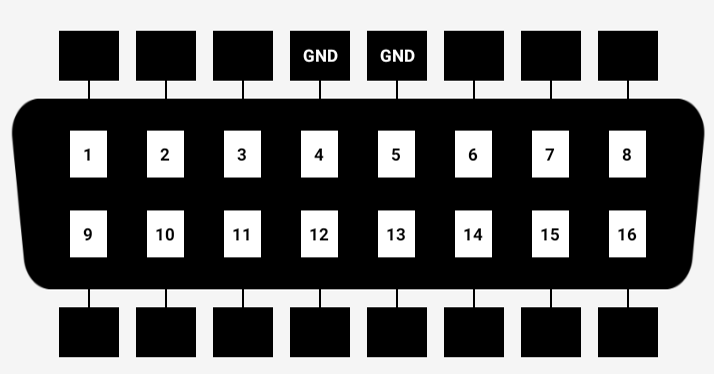
- The following screen will show the connection points of your OBD-II port. Please note that not every pin is connected to an electrical source, so it is important to verify the pinout of your vehicle before you begin testing. The image below shows a scanner that is connected to an OBD-II simulator. The ground points and battery voltage connections have been labeled.
- There are a few things you can check on this screen. You need to make sure the battery and CAN lines (CAN high and CAN low) have voltage. If no voltage is showing at any of these connection points, you will need to inspect your fuses and the wiring harness connected to your OBD port.
- You should also inspect your ground points using a multimeter to ensure they are working properly.
- If any of these connections are faulty, the next step is to check your fuses, and then the wiring harness connected to your OBD-II port.


For more help with your scanner, check out our other Scanner Guides, or contact YOUCANIC support at support@youcanic.com.