Scanner Guide: How to Read Live Engine Data on a YOUCANIC Scanner
Has that pesky check engine light come on again? While scanning for fault codes can be a great place to start, reading your engine’s live data might help you determine which system is faulty! Before spending hundreds or thousands at the dealership, use a YOUCANIC full-system scanner and try to fix the issue yourself!
This guide will walk you through how to read and record live engine data for the first time. These steps can be followed if you also need to read live data from another system in your car. Do you need a little extra help? Contact our tech team at support@youcanic.com.
Are you more of a visual learner? Follow along using our video guide!

🔧 Stop paying the dealer for every warning light
Get dealer level diagnostics at home with the YOUCANIC Full System Scanner.
- ✔ Works with all makes and models, including most luxury brands
- ✔ Topology map view shows all vehicle modules on one screen for faster diagnostics
- ✔ Bi directional controls to test fans, pumps, actuators and more so you do not have to guess
- ✔ Special resets and calibrations such as ABS bleed, EPB service, battery registration and more
- ✔ Free lifetime updates with no recurring fees

NOTE: The scanner used to create this guide was YOUCANIC’s latest model, the UCAN-II-C Pro. These steps will still work if you own an older UCAN-II scanner or a heavy-duty truck scanner.
Step-by-step guide
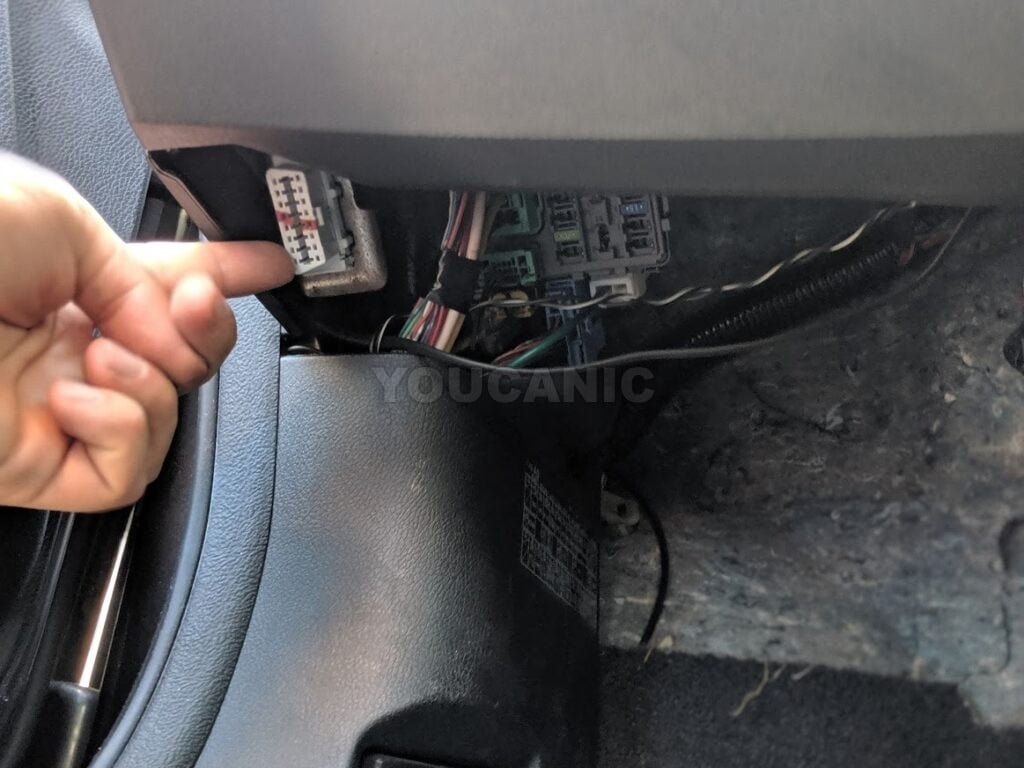
1. Plug your VCI dongle into your vehicle’s OBD-II port. If you aren’t sure where it is, you can look it up in your vehicle’s user manual or try to find the location online.
2. On your scanner, go to the Diagnostic page, and find your vehicle make. Alternatively, you can have the scanner automatically read your vehicle’s VIN or manually enter the VIN.
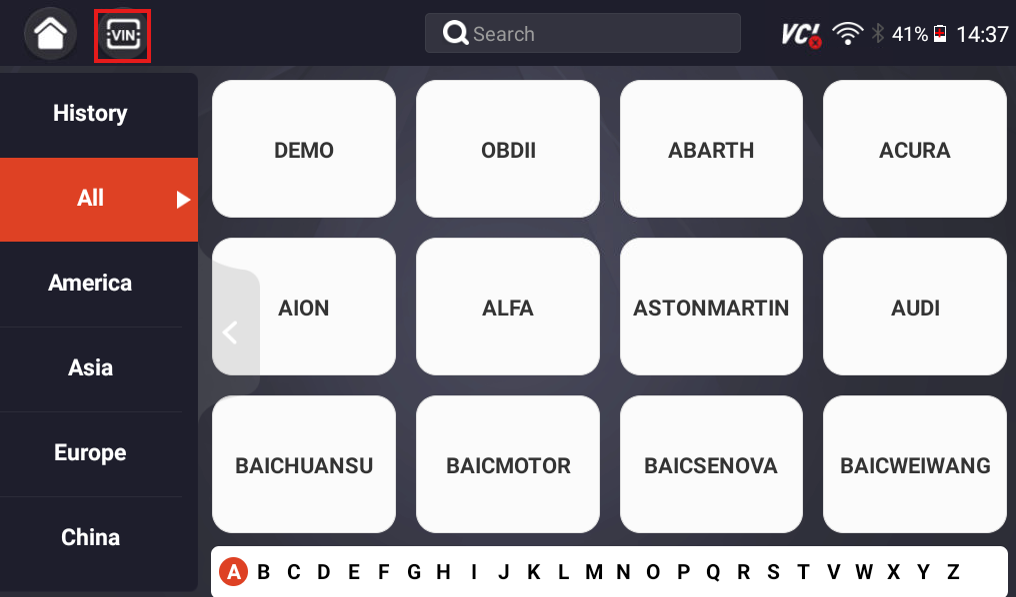
3. Select Diagnosis, Control Modules, then Engine, and all available engine tests will appear.

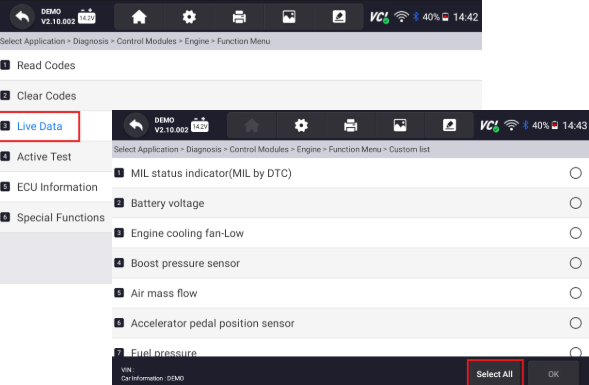
4. Select Live Data, and a list of available tests will appear. You can select all available options, or scroll and select specific engine tests. Once you have made your selection, press OK.
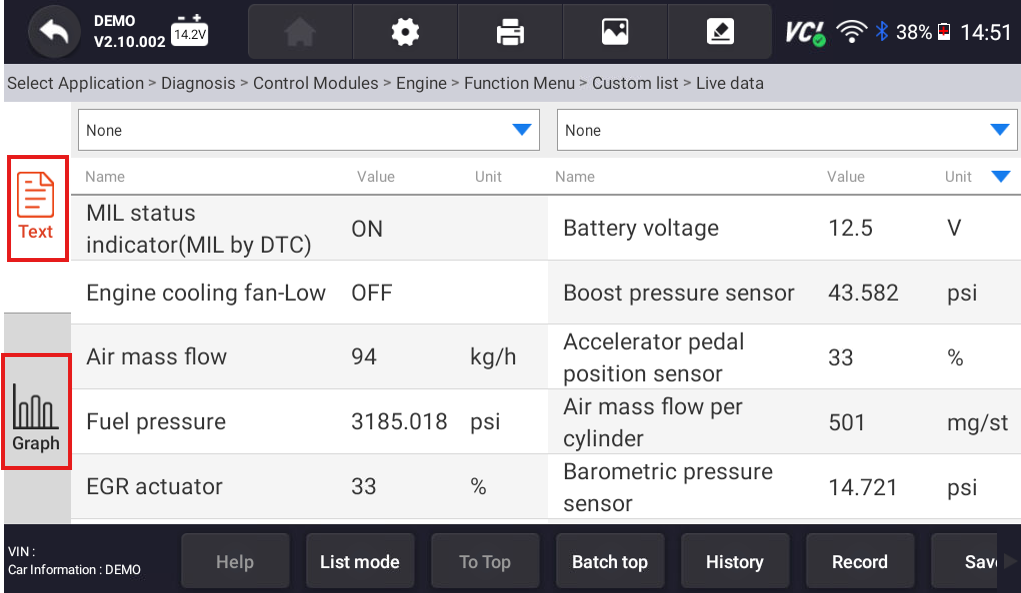
5. Now, you can monitor live data in your ECU. You can view selected information in both text and graphical forms.
6. In graph mode, you can view up to four datasets at a time. Toggle to different datasets using the buttons at the bottom of the screen.
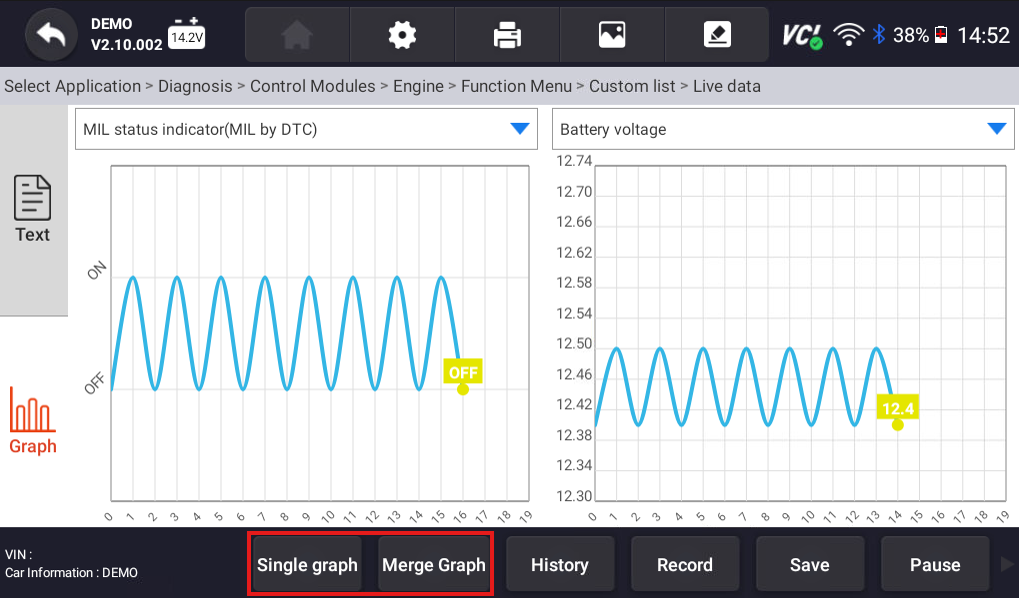
7. Using the dropdown menus at the top of the screen, find and select the different datasets you would like to view in graph mode (up to four).
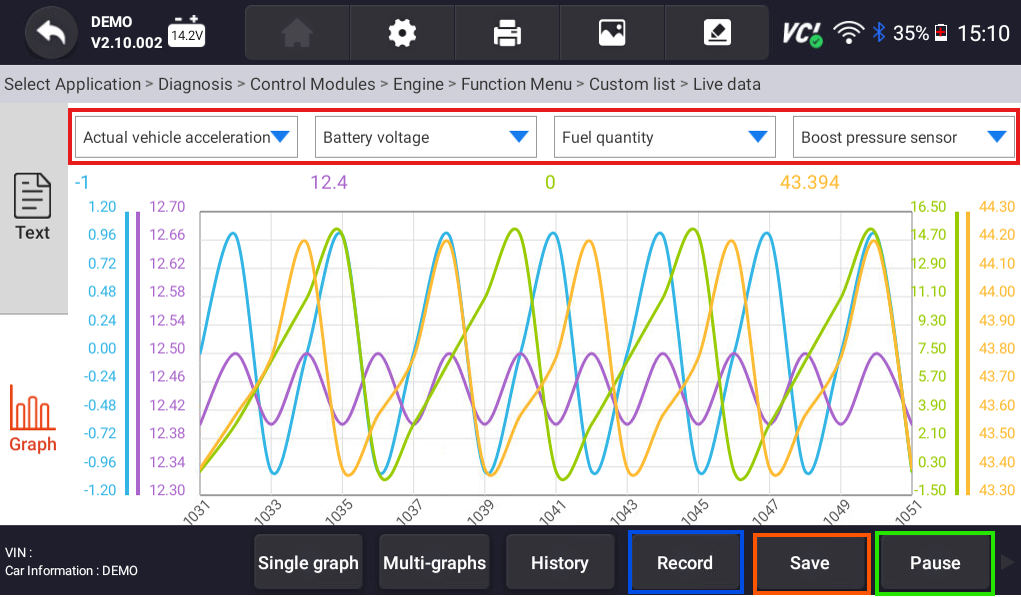
8. To record live data, press the record button (highlighted in blue above). To save data, press the save button (orange), and to pause the graph, press the pause button (green). You can also record data in text mode.
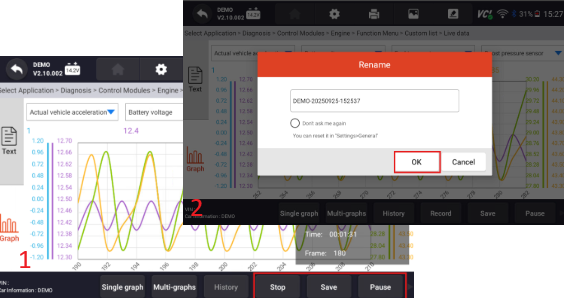
9. When you are done recording data, press the stop button to stop the recording, the save button to save it, or press the pause button to pause the recording. When you press the stop button, the scanner will automatically create a save file.
10. To access saved recordings, go to Data Manager and select Data Playback. All previously saved live data recordings will appear.

11. Select the recording you would like to view, and fill in the necessary data on the following screens.

NOTE: When you record data, it captures all live data from the system you were in at the time of recording.
You have sicessfully recorded live engine data using your YOUCANIC scanner. For more help with your scanner, check out our other scanner guides here, or contact our support team.